-2.png?width=100&height=100&name=Learning%20Genie%20Logo%20(400%20x%20400)-2.png)
Here are the step-by-step instructions on how to create a unit:
Locate the "New Unit" option at the upper right-hand side of the screen to start building a unit.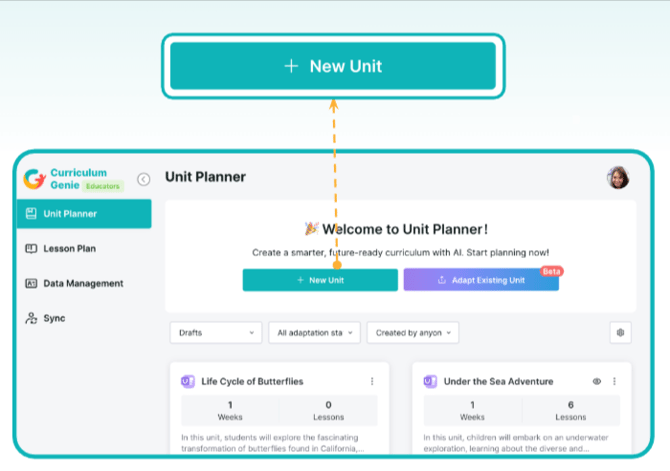
1. Set the unit name on the unit planner page. 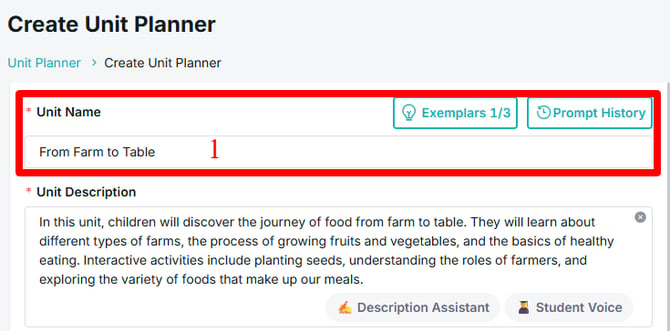
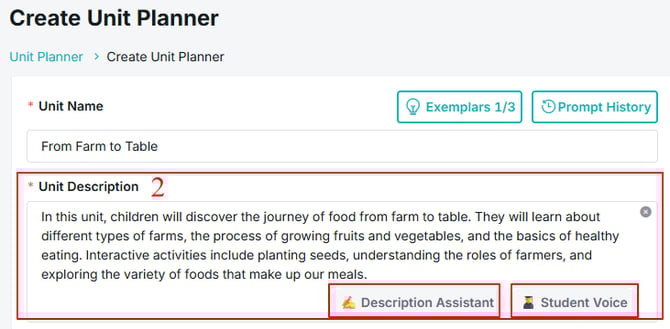
2. Enter the unit description. Enter a clear and detailed description so the system can understand your instructional goals and generate an appropriate unit.
-
You may include or suggest books directly within the description (optional).
Helpful Tools:
-
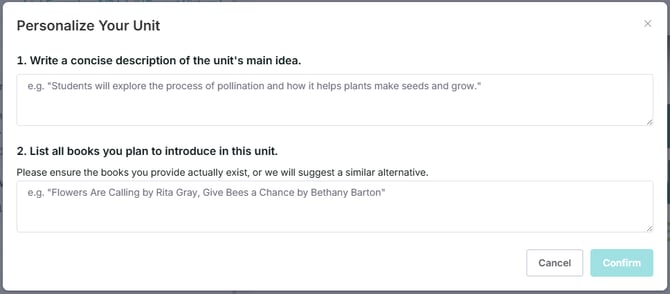
Description Assistant – Refine your curriculum by clarifying the unit’s main concept and listing specific books you plan to use. This helps the AI generate a more targeted, classroom-ready unit rather than a generic one.
-
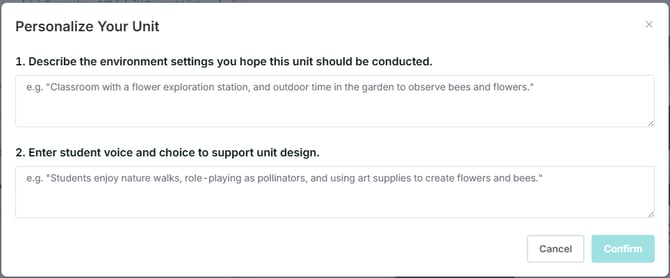
Student Voice – Personalize your unit by describing your learning environment and incorporating student input or preferences. This ensures the generated curriculum reflects both your classroom context and student interests.
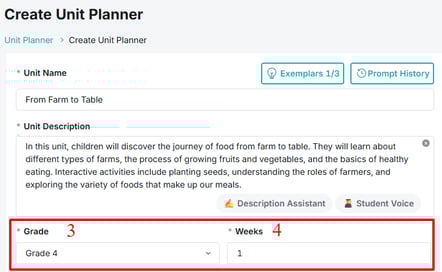
3. Select Grade or Age Group - Use the drop-down menu to choose the intended grade level or age group.
4. Set the Unit Duration - Choose the number of weeks for the unit. The system supports multi-week planning and may automatically suggest extending the duration if it determines that the topic is complex and would benefit from additional instructional time.
5. Choose State Standards. Select the applicable state standards. The system supports multiple frameworks, including those outside of California.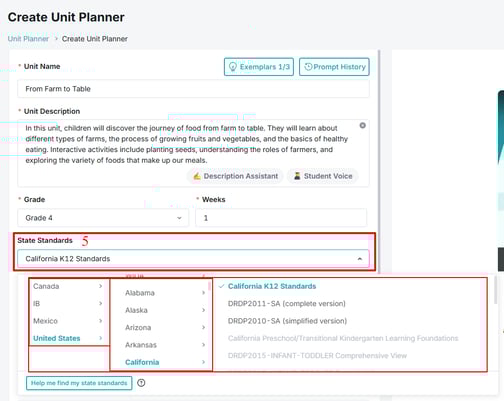
6. Choose the standards or subjects. This allows to align and focus your unit on the specific standards and subjects.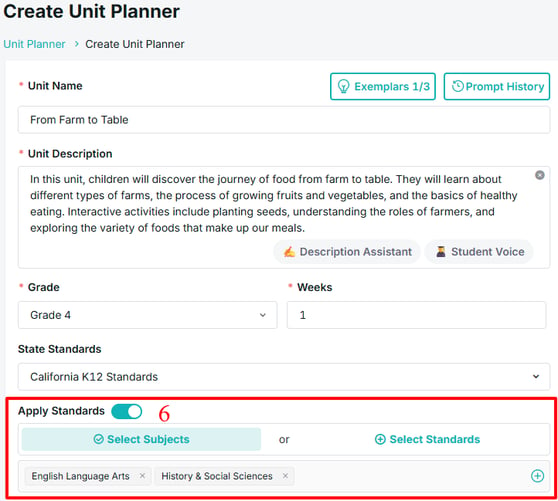
Align your unit by choosing either:
-
Subjects – The system will automatically recommend the most relevant standards under selected Subjects (select up to 4).
-
Standards – Manually select the specific standards you want to address.
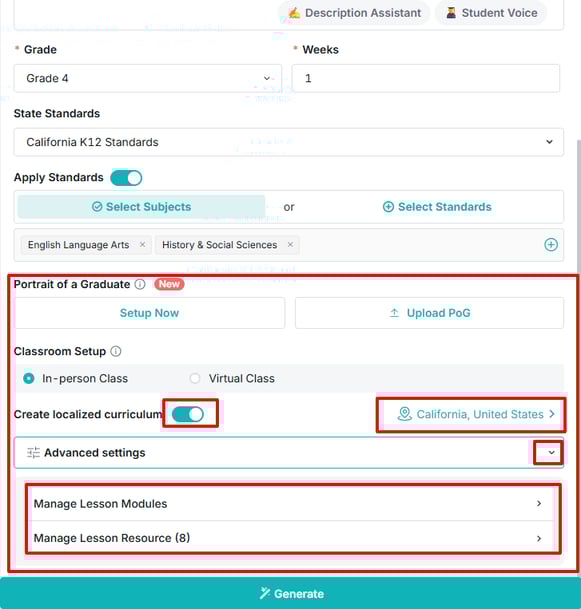
7. Additional Options (Optional but Recommended)
-
Portrait of a Graduate - Empower your unit plans with a focused approach that fosters both academic and personal growth, aligning each stage with the Portrait of a Graduate to build life-ready competencies and achieve your teaching goals. (Learn More)
-
Create Localized Curriculum. Select your city, state, county, or country so the curriculum can be localized to your area. (Optional)
-
Advanced Settings.
- Manage Lesson Modules - Customize Your Lesson Plan Modules
Select the supporting components you want to include with your lesson plan. (Learn More) - Manage Resources -
Choose which websites you'd like to prioritize when searching for lesson resources.
- Manage Lesson Modules - Customize Your Lesson Plan Modules
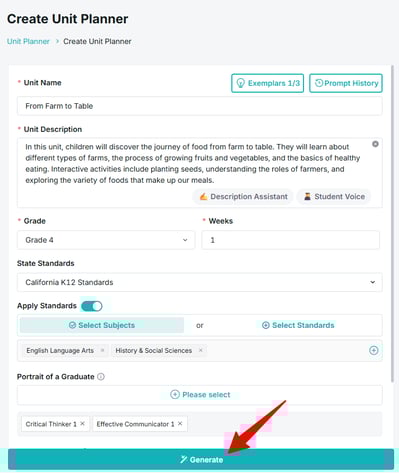
8. Generate the Unit - Click “Generate.”
-
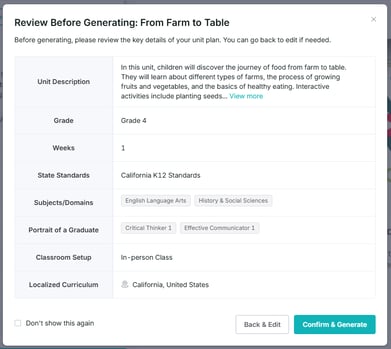
Review all unit details before proceeding.
-
Make edits if needed, then click “Confirm & Generate.”
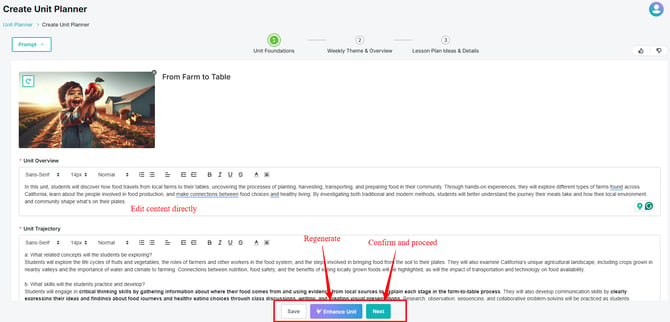
After Generation
-
The system creates a unit foundation with the unit overview, unit trajectory, key concepts, and guiding questions.
-
All generated content can be edited, updated, or fully regenerated.
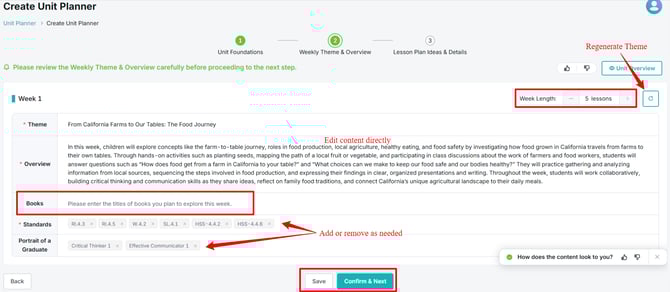
Week-by-Week Review
-
Review each week’s theme and overview, including objectives and content.
-
You may edit content, regenerate specific weeks, or regenerate all themes.
-
Click “Confirm and Next” to continue, or “Save” to return later.
Lesson Plan Ideas
-
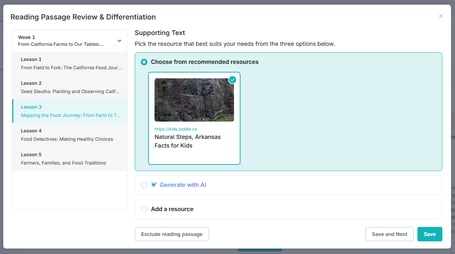
Review reading passage (if included as a lesson resource during unit creation). Review the recommended resources for Anchor & Supporting Text for each lesson. You can also generate with AI or upload your own, and set reading levels for class differentiation.

-
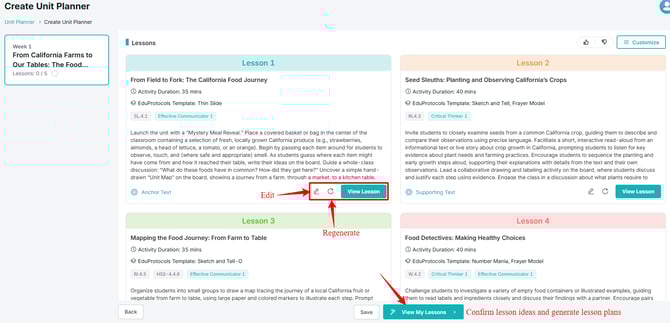
Review suggested lessons/activties for the week. Edit lesson titles, activity types, standards, and descriptions as needed.
- View "Anchor Text" or "Supporting Text" links - Access reading materials
- Edit icon (✏️) - Modify the lesson content
- Refresh icon (🔄) - Regenerate or update lesson content
- "View Lesson" button - See the full lesson plan details
Detailed Lesson Plans
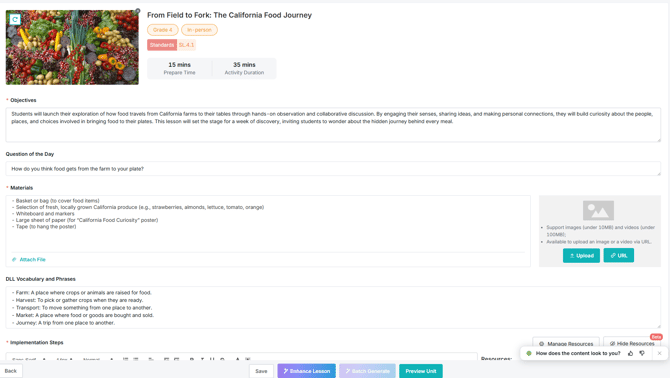
The system generates detailed lesson plans with:
- Lesson Objectives - This area outlines the specific learning goals and outcomes students will achieve by the end of the lesson. It clarifies what students should know, understand, and be able to do.
- Question of the Day - This section presents an engaging focus question that anchors the lesson and sparks student curiosity. It serves as the essential question that drives inquiry and learning throughout the lesson.
- Lesson Materials - A comprehensive list of all physical resources, supplies, and items needed to successfully implement the lesson, helping teachers prepare and gather necessary materials in advance.
- DLL Vocabulary and Phrases - This section provides key academic vocabulary and language support specifically designed for Dual Language Learners, with definitions to build language comprehension and content understanding.
-
Step-by-step implementation guidance -
A detailed, sequenced guide of instructional activities and teaching actions. This step-by-step walkthrough helps teachers execute the lesson effectively, including timing, transitions, and pedagogical moves. - Lesson Resources (if selected during unit creation) (Learn more)
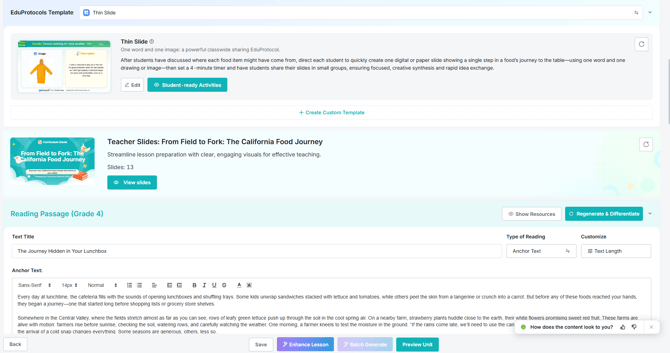
- Teacher Slides - Ready-made presentation slides that streamline your lesson preparation by giving you clear, engaging visuals to use during instruction. These slides are designed to support effective teaching by organizing the lesson content in a structured, visually appealing way so you can focus more on delivering the lesson rather than creating materials from scratch.
- Teaching Tips for Standards -This section connects formal academic standards to concrete, actionable classroom strategies, helping you understand exactly how to implement each standard during the lesson. It bridges theory and practice by providing specific instructional suggestions that ensure your activities are directly aligned with the required learning goals.
- Portrait of a Graduate (if selected during unit creation) - This section connects lesson activities to broader competencies and skills students need for future success, such as critical thinking and effective communication, showing how the lesson develops these transferable capabilities.
All sections of the generated lesson plan can be modified or updated as needed.
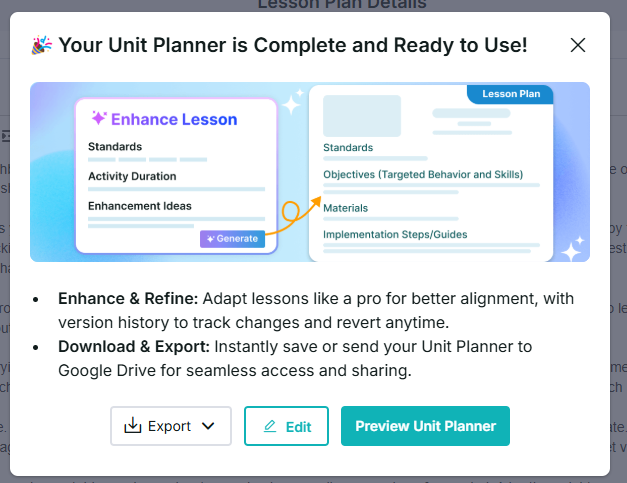
Once the unit is 100% completed, it can be exported (as PDF, Word, or to Google Drive), go back and Edit, or you can preview the whole unit planner.
Completed Unit Planner
Once your unit is fully developed, the Completed Unit Planner provides a comprehensive, organized view of all components, helping you see the full scope of your curriculum at a glance.
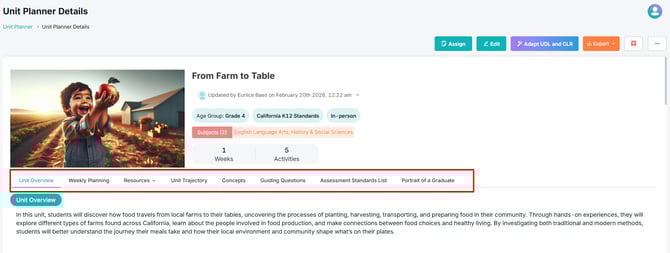
The completed Unit Planner will contain:
Unit Overview
This section provides a comprehensive introduction to the entire unit, explaining the big picture of what students will learn and experience. It outlines the overarching goals, the main topics to be covered, and how students will engage with the content through hands-on activities and investigations.
Weekly Planning
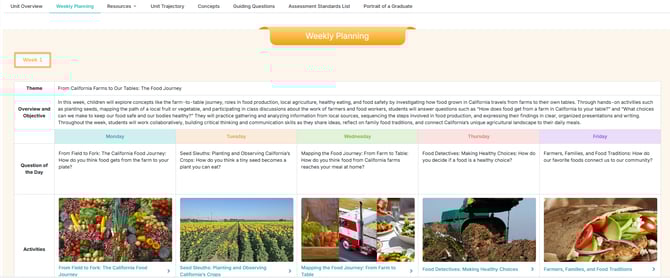
This section breaks down the unit into week-by-week plans, showing the daily flow of instruction. Each week includes a theme, overview with objectives, daily questions, and specific activities (the generated lessons) aligned to standards. This helps teachers see the progression of learning and plan their daily instruction effectively.
Resources
This section houses all the supporting materials needed to implement the unit, including key vocabulary lists, additional formative assessments, and other instructional resources that teachers can reference throughout the unit.

Unit Trajectory
This section maps out the learning journey by answering critical planning questions: what concepts students will explore, what skills they'll develop, which teaching strategies will be used, how social-emotional development will be supported, and other important considerations for implementation.
Concepts
This section identifies the core ideas and big concepts that anchor the unit. These are the essential understandings students should grasp by the end of the unit, such as "Farm-to-Table Journey" or "Local Agriculture."
Guiding Questions
This section lists the essential questions that drive inquiry and exploration throughout the unit. These open-ended questions help students think critically and make connections between concepts.
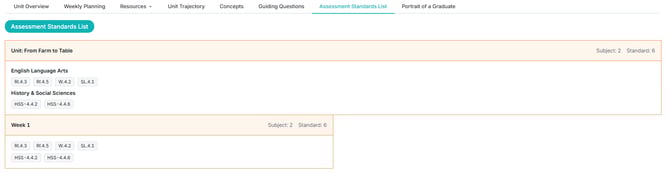
Assessment Standards List
This section organizes and displays all the California K12 standards that are addressed in the unit and each week, making it easy to see alignment with English Language Arts and History & Social Sciences standards.
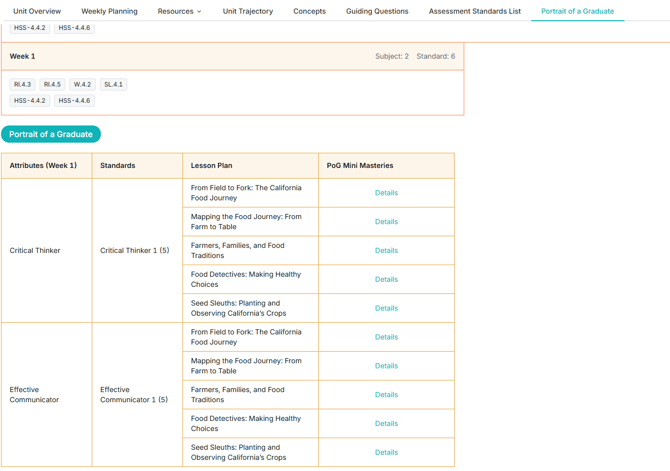
Portrait of a Graduate
This section connects the unit activities to broader competencies and attributes (like "Critical Thinker" and "Effective Communicator") that students should develop, showing how specific lessons build these important skills and dispositions.
With these tools and steps, you can confidently create engaging, standards-aligned units that are tailored to your classroom and ready to bring learning to life.
Need Help?
If you run into issues or have questions, the Learning Genie Support Team is here for you!
Email: help@learning-genie.com
Phone: 760-576-4822