Skip to content
English
  • There are no suggestions because the search field is empty.

Submitting Work for Performance Tasks

A comprehensive guide to understanding project expectations, navigating your task list, and submitting multimodal evidence for major unit projects.

Performance-based Assessments are comprehensive, 1-2 week projects designed to help you demonstrate your understanding of both academic standards and your Portrait of a Graduate (PoG) competencies.
 
Unlike standard quizzes, these projects allow you to showcase your unique skills by submitting "multimodal" evidence—meaning you can share your learning through written reflections, images, audio recordings, or videos.
 
Here is a step-by-step guide to finding your project, understanding what your teacher expects, and successfully submitting your best work.
 

 Step 1: Accessing Your Performance Tasks

When a major project is assigned to your class, it will appear directly on your dashboard.
 
Instruction slide on how to access and filter tasks in the Curriculum Genie Student Dashboard.
 

1. Log in to your student account and navigate to your PoG Portfolio.


2. Look for your assigned unit project. If you have multiple assignments, use the filters at the top of the screen to sort your task list by status (e.g., In Progress or Awaiting Reflection) or by activity type.

3. Click the View Performance Tasks button on the project card to enter the project workspace.


Step 2: Understanding Your Task List and Expectations
Before you begin creating your project, it is important to know exactly what is expected of you.


  • Navigate "My Task List": On the left side of your screen, you will see a menu called "My Task List." This breaks the week-long project down into smaller, manageable steps (e.g., Task 1: Observe & Record, Task 2: Model & Explain). Click on a specific task to view its detailed instructions.

Step 2 explains how to use the task list roadmap to navigate through small project steps.

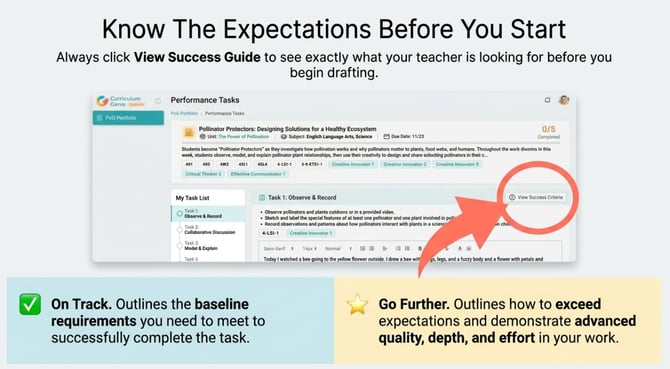
  • Check the Success Guide: Before you start working, click the View Success Guide button. This guide automatically generates clear criteria to help you visualize exactly what is expected, divided into two levels:
    • On Track: Outlines the baseline requirements you need to meet to successfully complete the task.
    • Go Further: Outlines how you can exceed expectations and demonstrate advanced quality, depth, and effort in your work.
Step 3: Creating and Uploading Multimodal Evidence

Curriculum Genie allows you to express your ideas in the format that works best for you.

  • Rich Text Editor: Use the built-in text box to type your reflections, explain your problem-solving process, or write out your research. You can format your text using tools like bolding, italics, bulleted lists, different fonts, and inserting images.

Step 3: Draft Your Thoughts slide explains how to use the rich text editor's formatting tools for student reflections.

  • Multimodal Uploads: Below the text box, you will find options to attach supporting evidence. You can:
    • Click to record audio directly into the system to verbally explain your thoughts or presentation. This is a great option if you prefer speaking over writing — simply click the microphone button and record your explanation in your own words.
    • Click to select or drag & drop your file to attach supporting documents. Please note that only PDF files (.pdf) are currently supported for file uploads. Before submitting, make sure your document is saved or exported in PDF format. If your file is in another format (such as .docx or .pptx), you will need to convert it to PDF first before attaching it to your submission.
Slide titled Attach Your Evidence showing buttons to upload PDF files or record audio for submission.
Step 4: Submitting Your Work
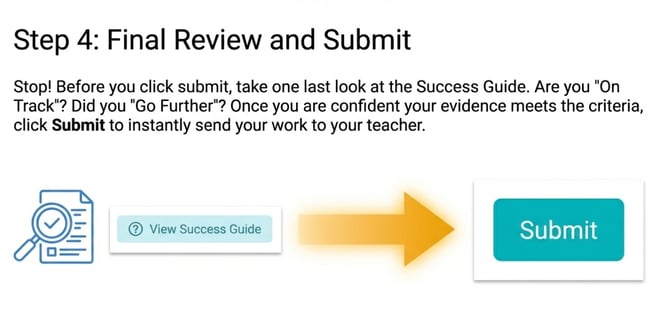
Once you have written your reflection and attached all necessary files, take a moment to review your work against the Success Guide one last time. When you are confident that your submission meets the criteria, click the Submit button at the bottom right of the screen. This will immediately send your evidence to your teacher for review.
 
 
Step 5: Reviewing Your Feedback to Grow
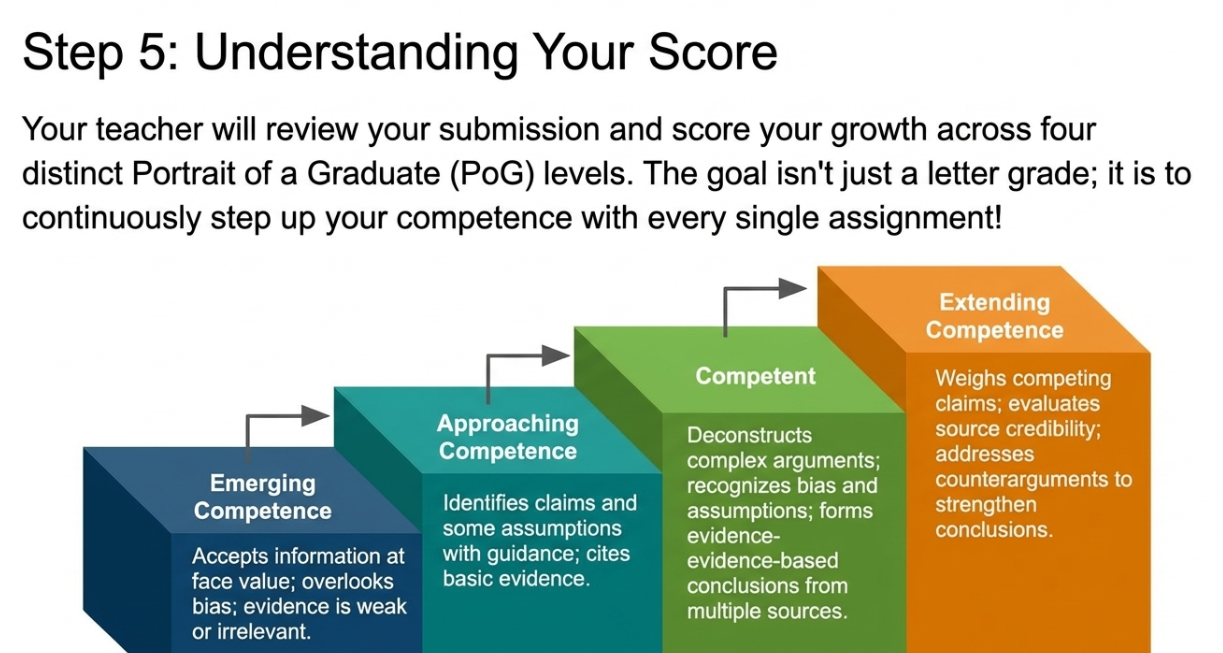
After you submit your task, your teacher (with the help of AI) will review your work and provide a score based on a 4-level competency rubric: Emerging Competence, Approaching Competence, Competent, or Extending Competence.
 
 
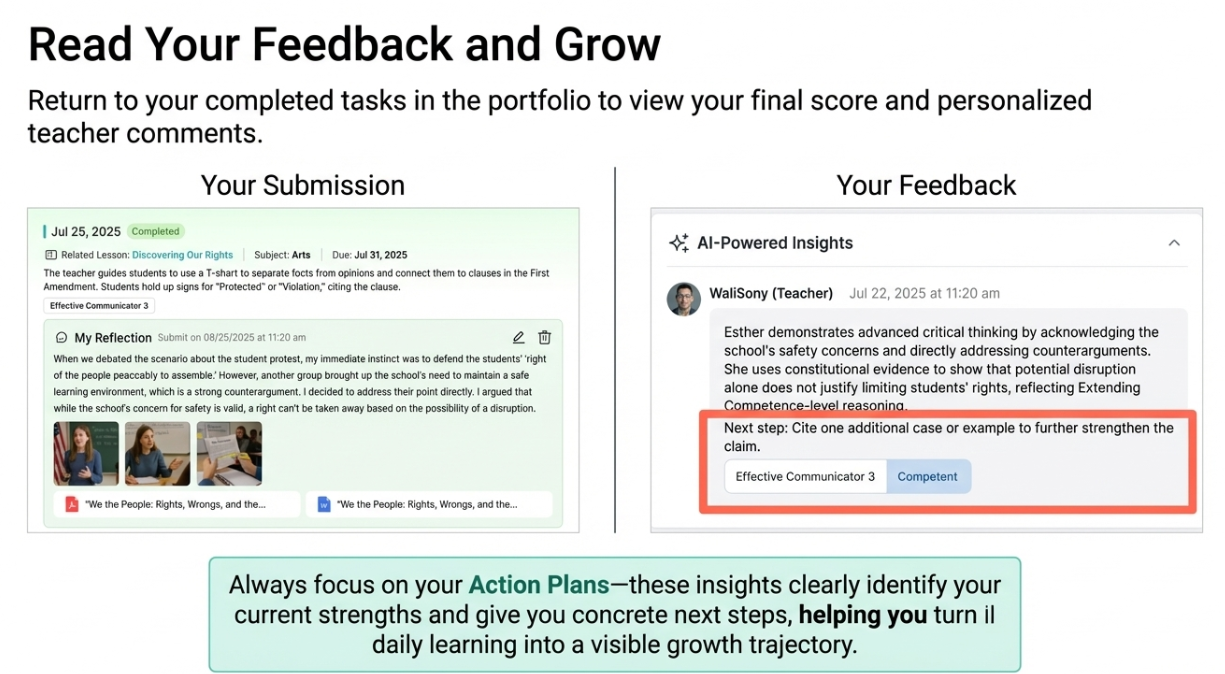
Once graded, you can return to your completed task in your portfolio to view personalized teacher comments and feedback. These insights will clearly identify your current strengths and provide concrete "Action Plans" and next steps, helping you turn your daily learning into a visible, trackable growth trajectory for your next assignment.


Showcase Your Growth By completing Performance-based Assessments in Curriculum Genie, you are doing more than just taking a standard test—you are building a rich, multimodal portfolio that proves you are mastering both academic subjects and essential Portrait of a Graduate (PoG) skills.
 
Always remember to use your Success Guide to guide your work, submit your best evidence, and actively review your teacher's feedback. Every project you complete and every piece of feedback you apply helps transform your daily learning into a visible, trackable growth trajectory.
 
Keep reflecting, keep improving, and watch your skills grow with every submission.


Need Help?

If you run into issues or have questions, the Learning Genie Support Team is here for you!

Email: help@learning-genie.com
Phone: 760-576-4822