-2.png?width=100&height=100&name=Learning%20Genie%20Logo%20(400%20x%20400)-2.png)
When you log into Curriculum Genie, you will land directly on your PoG Portfolio dashboard. This is your central hub for all assignments, learning materials, and progress tracking.
Whether you are tackling a multi-week project or completing a quick daily reflection, the PoG Portfolio keeps everything organized. Here is how to make the most out of your dashboard.

1. Finding and Filtering Your Tasks
If you have multiple assignments, your dashboard can be customized so you only see what you need to focus on right now.
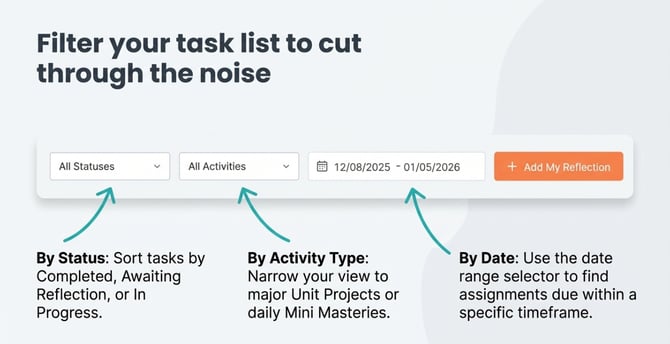
- Filter by Status: Use the drop-down menus at the top of the screen to sort your task list by its current status, such as Completed, Awaiting Reflection, or In Progress.
- Filter by Activity Type: You can narrow your view to see only major Unit Projects (Performance-based Assessments) or daily Mini Masteries.
- Filter by Date: Use the date range selector to find assignments due within a specific timeframe.
2. Understanding the Context of Your Work
Before jumping into an assignment, it helps to understand what you are trying to achieve.
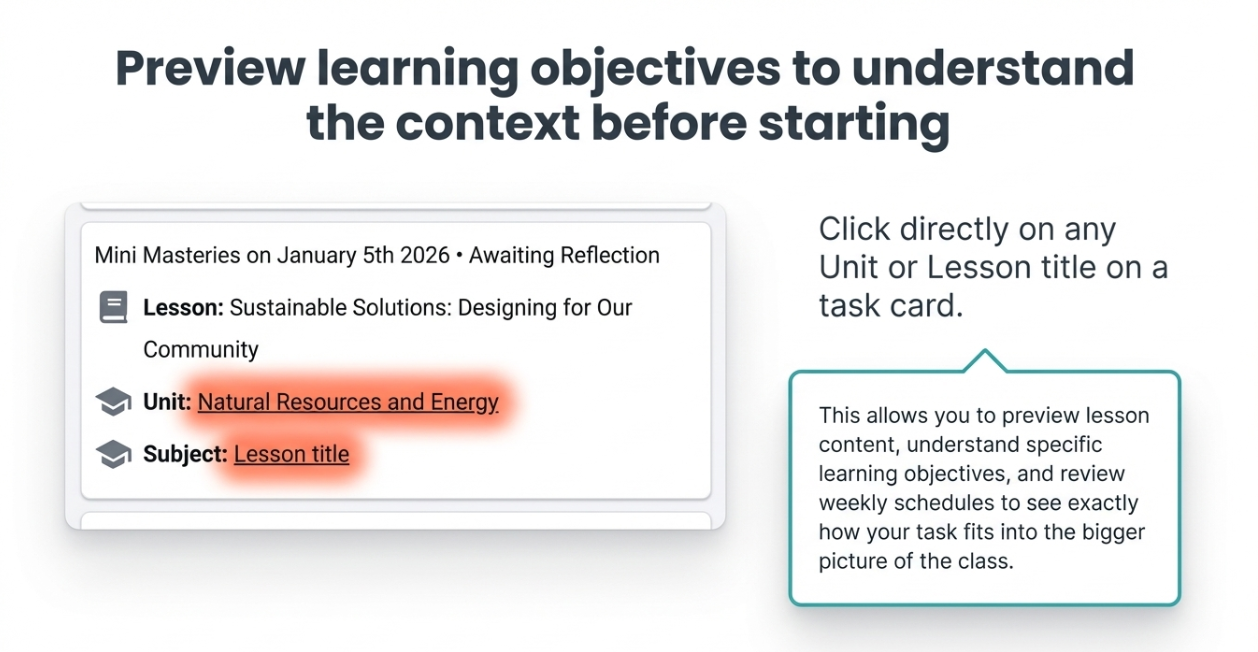
- On any task card, you can click on the Unit or Lesson title.
- This feature allows you to preview the lesson content, understand the specific learning objectives, and review the weekly schedules to see how your task fits into the bigger picture of the class.
3. Starting Your Assignments
Depending on what your teacher has assigned, you will take different paths to begin your work:
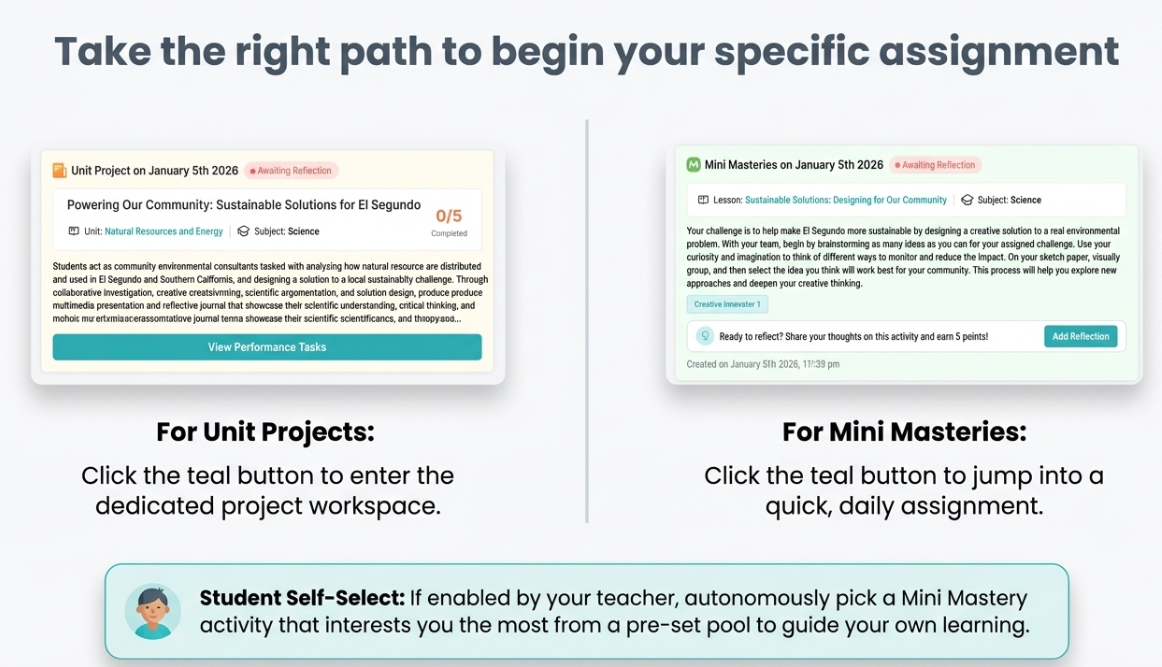
- For Unit Projects: Click the teal "View Performance Tasks" button on the assignment card to enter the project workspace. Here, you will see your "Task List" on the left sidebar, where you can view detailed instructions and check the Success Criteria for each specific step of the project.
- For Mini Masteries: Click the teal "Add Reflection" (or "Add My Reflection") button to quickly start a short, daily assignment.
- Self-Select Activities: Sometimes, your teacher may enable a "Student Self-Select" option. If this is active, you will be able to autonomously select a Mini Mastery activity that interests you the most from a pre-set pool, allowing you to guide your own learning.
4. Using Guided Tools and Multimodal Submissions
When you are ready to write your reflection or submit your project, Curriculum Genie provides tools to help you succeed:
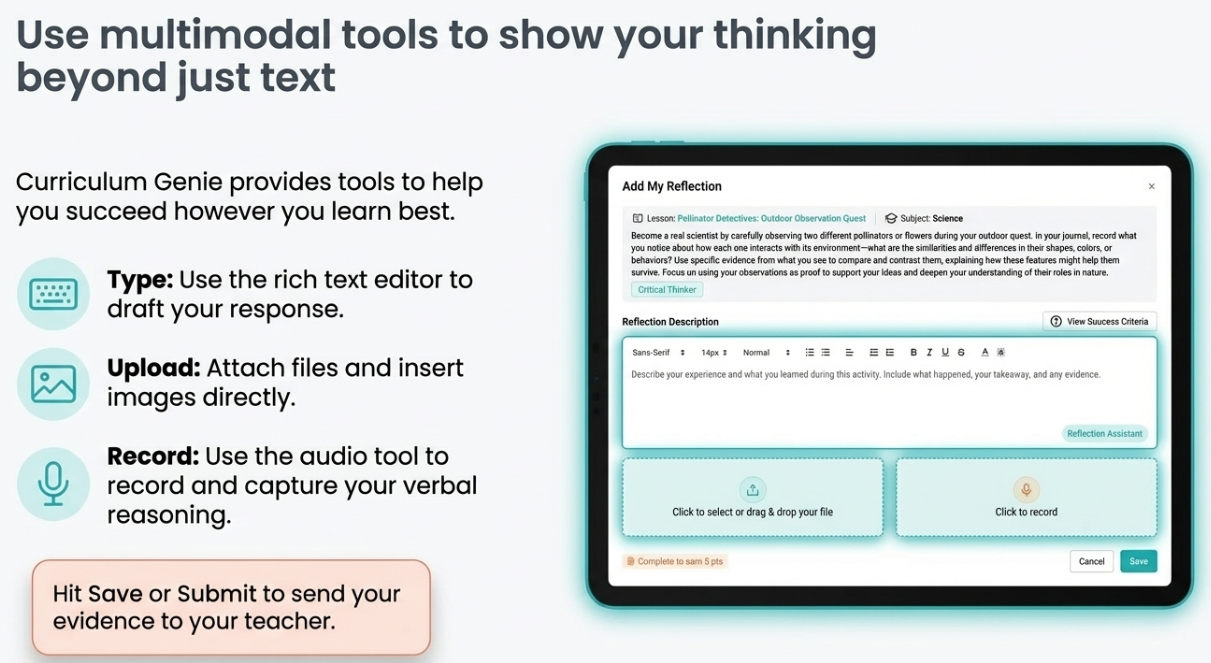
- Multimodal Evidence: You don't just have to type! You can use the upload tools below the text box to attach files, insert images, or even record audio directly into the system to show your thinking. Once you are done, hit Save or Submit to send it to your teacher.
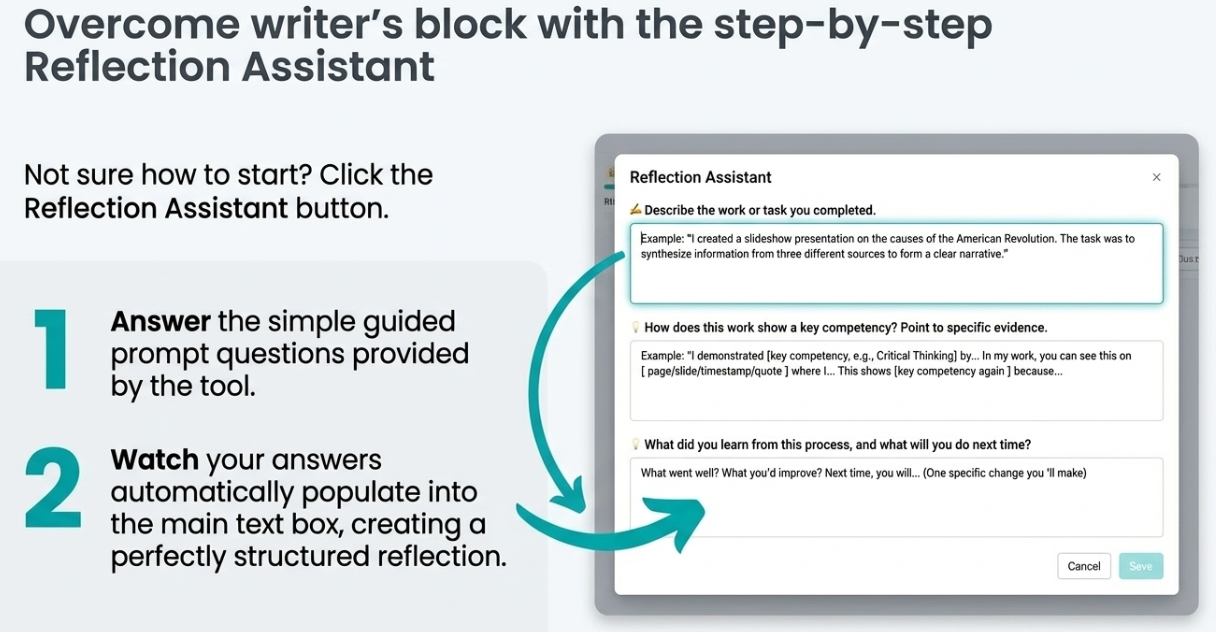
- Reflection Assistant: If you aren't sure how to start, click the "Reflection Assistant" button. This tool provides step-by-step guided prompts. Once you answer the questions, your answers will automatically populate into your main text box to create a structured reflection.
5. Tracking Your Growth and Rewards
Learning is a journey, and your PoG Portfolio helps you visualize your progress every step of the way.
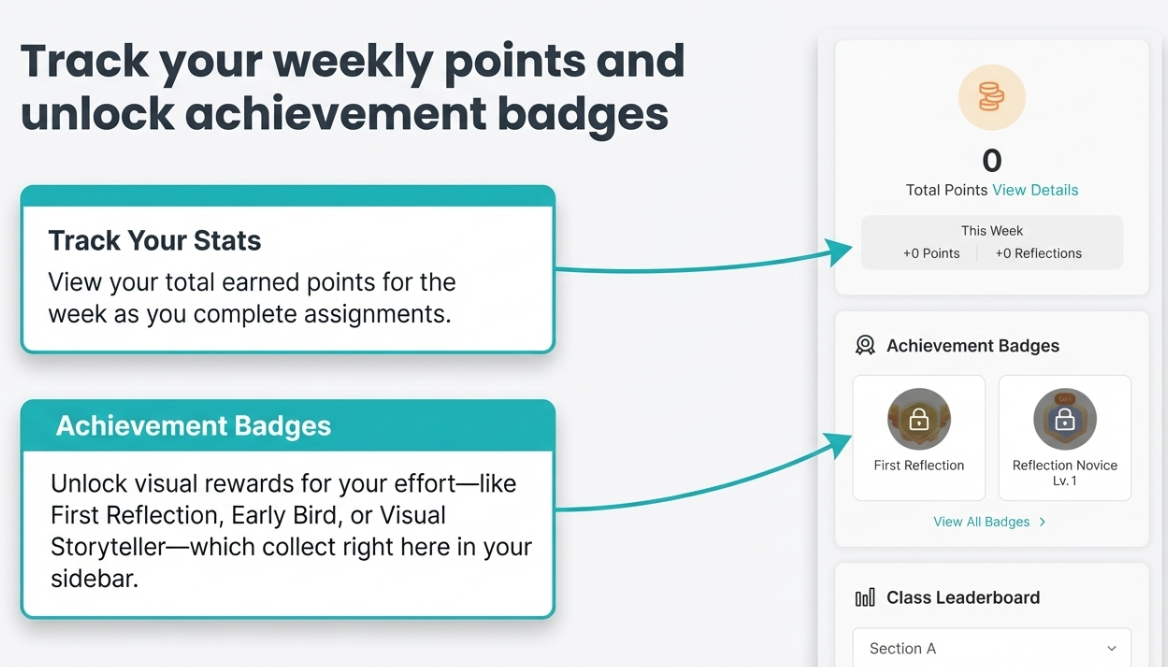
- Track Your Stats: On the right sidebar of your dashboard, you can view your total earned points for the week.
- Achievement Badges: As you submit reflections and complete tasks, you will unlock badges (such as "First Reflection", "Early Bird", or "Visual Storyteller") that appear in this sidebar.
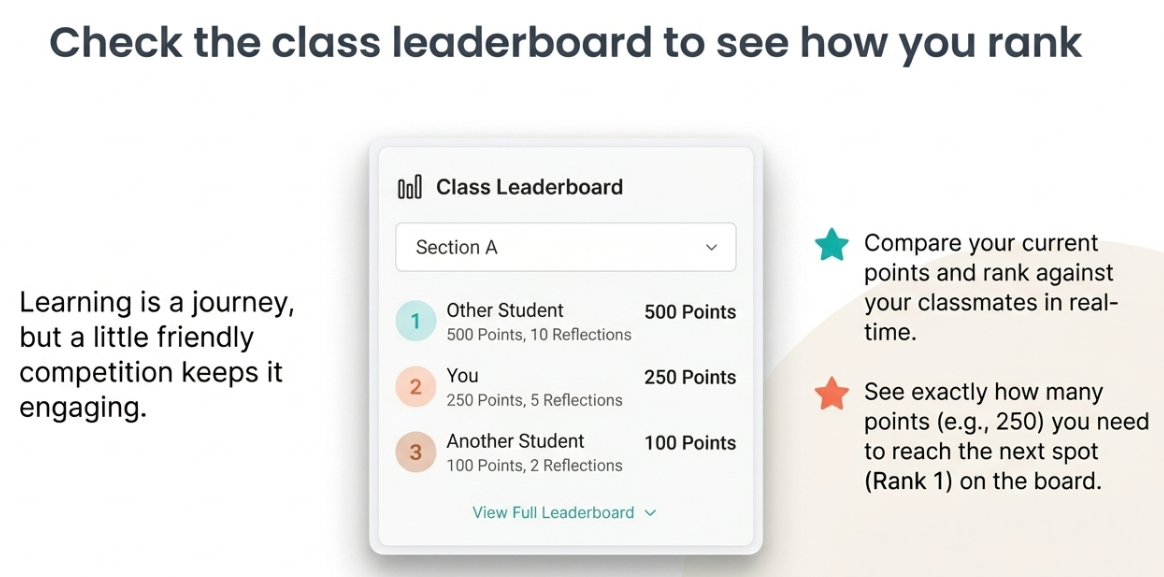
- Class Leaderboard: Check the leaderboard section to see your current rank and points compared to your classmates.
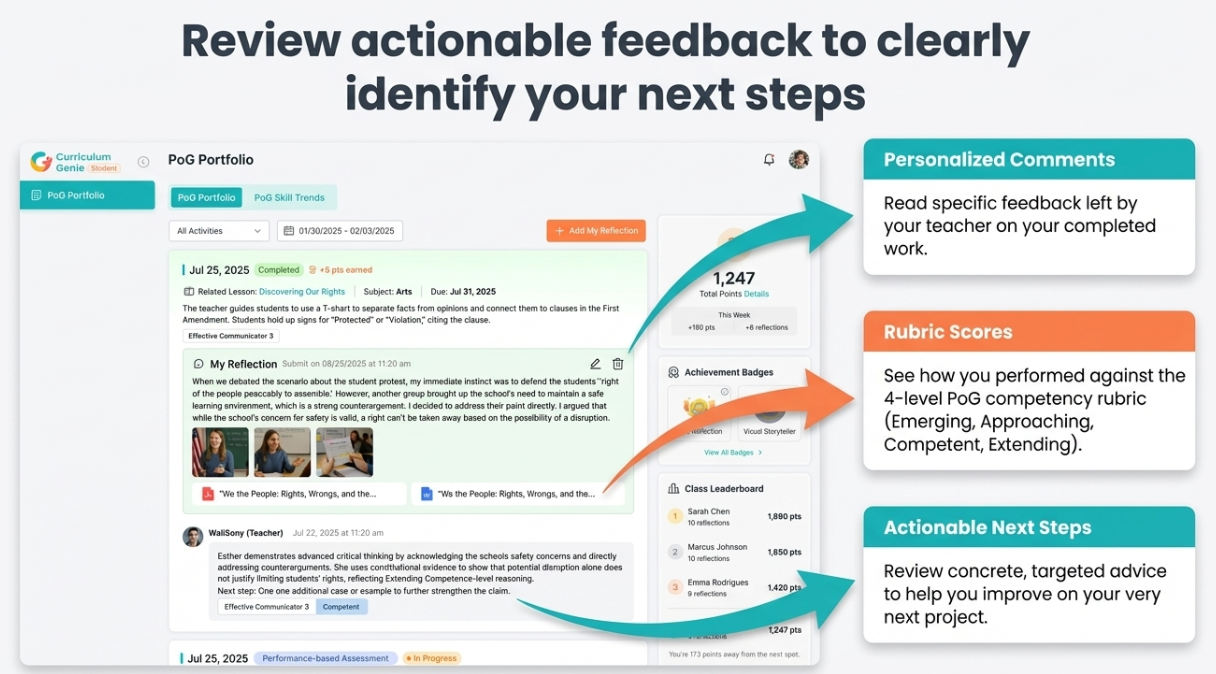
- Reviewing Feedback: Once your work is graded, you can return to your completed assignments to read personalized teacher comments, see your rubric scores, and review actionable "Next Steps" to help you improve on your next project.
Take Charge of Your Learning Journey By mastering your PoG Portfolio, you are doing more than just completing assignments—you are actively taking charge of your own educational journey.
Need Help?
If you run into issues or have questions, the Learning Genie Support Team is here for you!
Email: help@learning-genie.com
Phone: 760-576-4822