-2.png?width=100&height=100&name=Learning%20Genie%20Logo%20(400%20x%20400)-2.png)
The Station Rotation feature allows teachers to transform traditional whole-class lessons into structured, ready-to-teach small-group learning stations. This model promotes differentiated instruction, active engagement, and provides built-in tools for smooth classroom execution.
Part 1: Creating Station Rotations
You can convert any existing lesson into a Station Rotation with a single click—no redesign required. The AI will automatically organize your content into student-friendly station tasks.
Step 1: Enable Station Mode
- Generate your Unit Plan (learn more here).
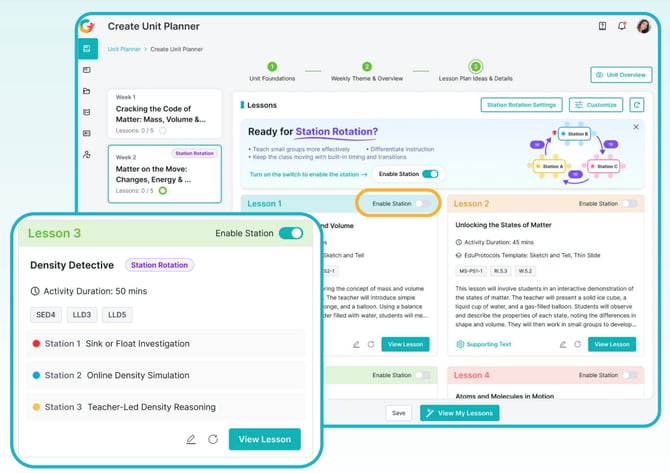
- In the Lesson Plan Ideas stage, select the lesson you wish to convert.
- Toggle the switch to Enable Station.
Step 2: Configure Station Settings
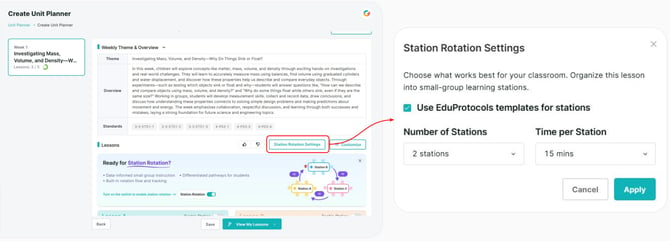
- Click on Station Rotation Settings to customize the experience for your classroom.
- Set the Number of Stations:
- For general Online/Offline/Teacher-led stations, you can choose between 2 to 6 stations.
- If integrating optional EduProtocols, you can choose 2 to 4 stations.
- Set the Time per Station.
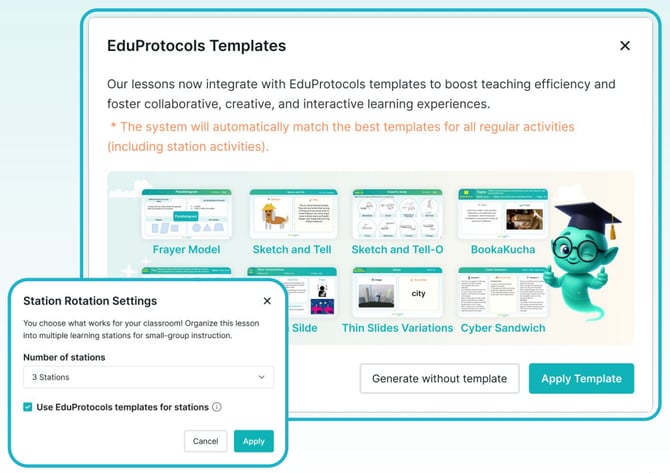
- Choose whether to Use EduProtocols templates for stations. If enabled, the system will automatically match the best templates (e.g., Frayer Model, Sketch and Tell) to boost teaching efficiency and interactive learning.
Step 3: Review the Generated Lesson Plan
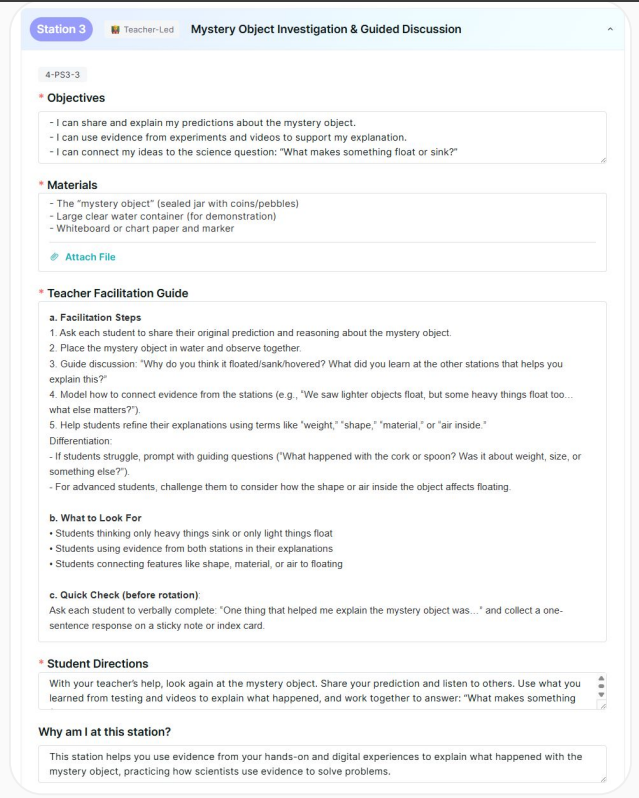
1. The AI generates a classroom-ready plan mapping the full flow, including the whole-group launch, the rotation itself, and the wrap-up.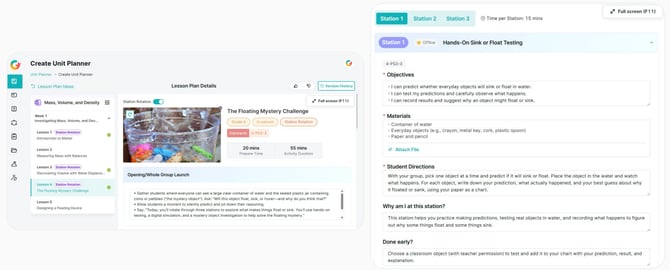
--------------------------------------------------------------------------------
Part 2: Assigning and Grouping Students
Step 1: Create Flexible Student Groups
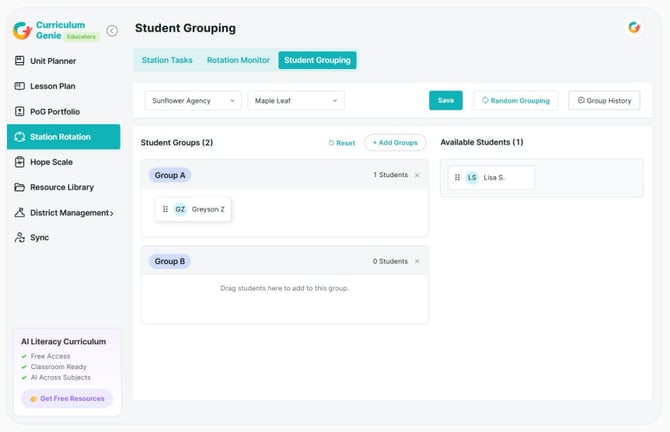
- Navigate to Station Rotation > Student Grouping.
- Create and adjust groups using automatic random grouping, manual drag-and-drop adjustments, or AI-assisted grouping (coming soon).
- You can customize the number of groups and group sizes, or apply previously saved grouping configurations in one click.
Step 2: Assign the Rotation
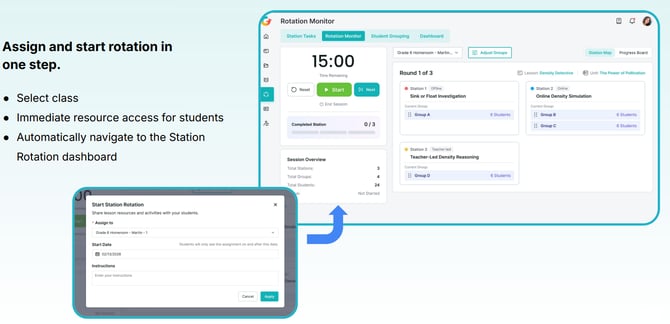
- Select the class or section you wish to assign the lesson to.
- Add a start date and any specific instructions.
- Students will have immediate access to the resources, and you will automatically be taken to the Station Rotation dashboard.
--------------------------------------------------------------------------------
Part 3: Live Rotation Management
The Rotation Monitor gives you real-time control over the classroom flow and student progress.
Using Live Rotation Controls
- Start/Pause/Next Controls: Manage the flow of the class with built-in transition controls.
- Rotation Timer: A central timer keeps stations on track. Transition protocols will display cues (e.g., "Stop and put materials down", "Move quietly to your next station") when the timer sounds.
- Visual Station Map & Progress Board: Get an at-a-glance view of where every group is located and their completion progress. The system automatically tracks task completion, or you can manually mark stations as complete.
--------------------------------------------------------------------------------
Part 4: Reviewing Submissions and Data Tracking
Reviewing Student Work
- Navigate to Station Rotation > Station Tasks.
- Review individual submissions, reflections, and evidence of learning across the entire class.
- Provide feedback directly to students to help them improve their future work.
