-2.png?width=100&height=100&name=Learning%20Genie%20Logo%20(400%20x%20400)-2.png)
While Curriculum Genie offers automatic data sync through Clever and ClassLink, you can manually add core data elements through the Data Management hub.1
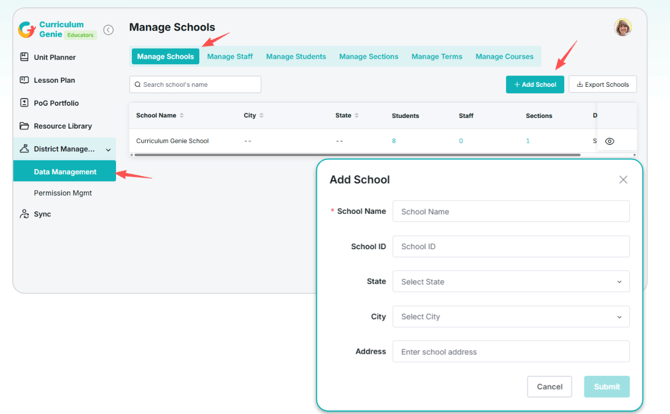
Navigation Path: District Management → Data Management → Manage Schools → + Add School
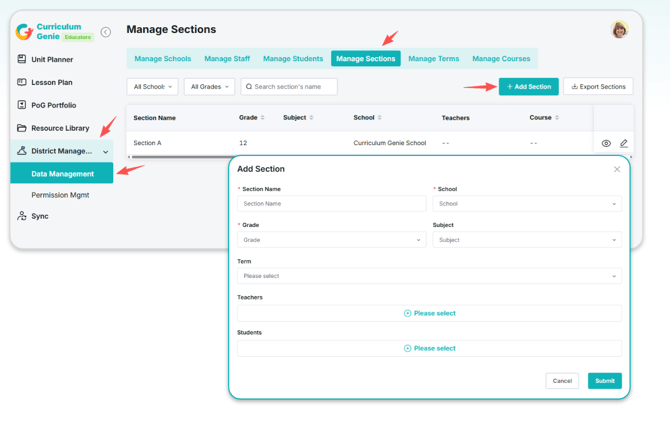
Navigation Path: District Management → Data Management → Manage Sections → + Add Section
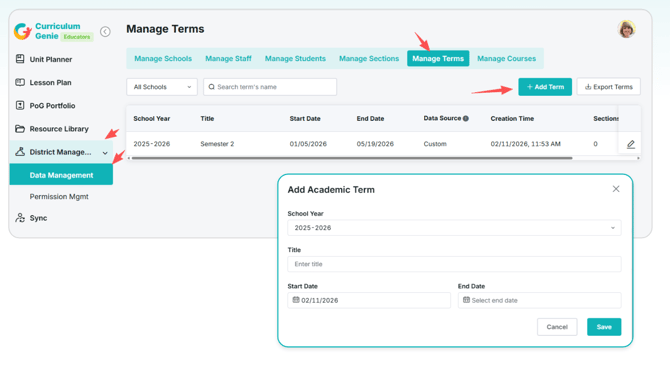
Navigation Path: District Management → Data Management → Manage Terms → + Add Term
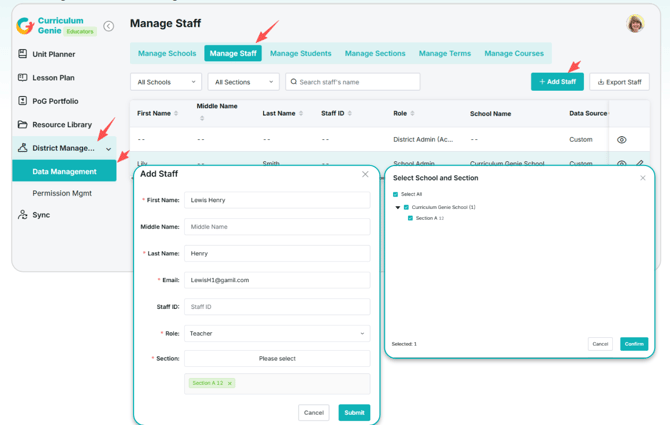
Navigation Path: District Management → Data Management → Manage Staff → + Add Staff
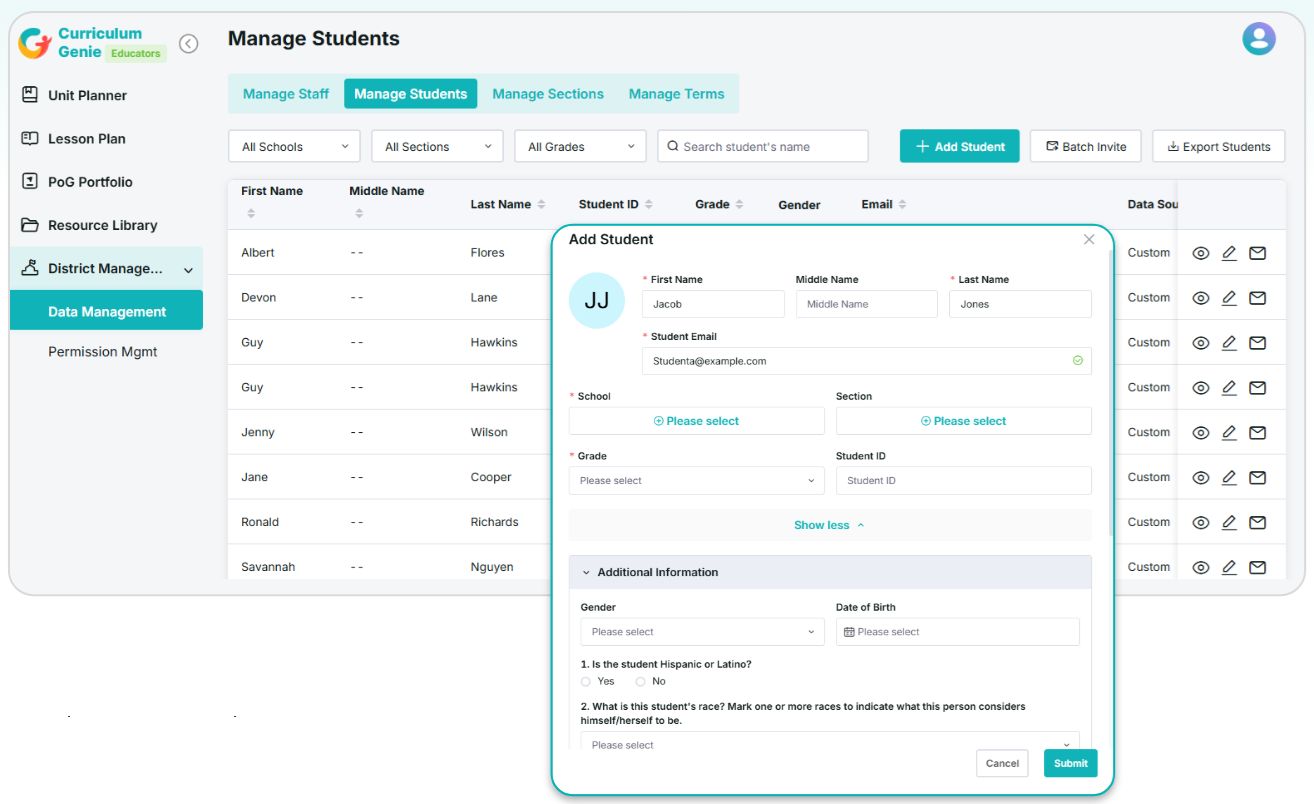
Navigation Path: District Management → Data Management → Manage Students → + Add Student
Important Note: For any data—schools, sections, staff, students, or terms—that has been synced from Clever/ClassLink, manual edits are restricted because any changes will be overwritten during the next nightly sync. If updates are needed for synced data, you must make the changes in Clever/ClassLink instead.
1. Adding School
District Owners and Admins have the ability to create new schools.1- Go to Manage Schools.
- Click the + Add School button.
- Fill out the following information: School Name (required), School ID, State, City, and Address.
- Click Submit.
2. Adding Sections
District Owners and Admins have the ability to add sections and assign teachers and students to them.- Go to Manage Sections.
- Click the + Add Section button.
- Fill out the following information: Section Name, School, Grade, Subject, and Term.
- Assign Teachers and Students (Optional, could be done later).
- Click Submit.
3. Adding Terms
District Owners / Admins and School Admins have the ability to add new academic terms.- Go to Manage Terms.
- Click the + Add Term button.
- Fill out the following information: School Year, Title, Start Date, and End Date.
- Click Save.
4. Adding Staff
District Owners/Admins and School Admins can add staff and assign them to specific schools and sections.
Note: Anything with a red asterisk is a required field.
- Go to Manage Staff.
- Click the + Add Staff button.
- Fill out the following information: First Name, Last Name, Email, Staff ID, Role, and Section.
- Click Submit.
5. Adding Student
Any staff member can add students and assign them to a specific school and section.- Go to Manage Students.
- Click the + Add Student button.
- Fill out the following information: First Name, Last Name, Student Email, School, Section, Grade, and Student ID.
- Click ‘Show more’ to input Additional Information, such as gender or date of birth.
- Click Submit.
Please reach out to us if you have any questions!
help@learning-genie.com
(760)576-4822