-2.png?width=100&height=100&name=Learning%20Genie%20Logo%20(400%20x%20400)-2.png)
Curriculum Genie transforms static Portrait of a Graduate (PoG) frameworks into a living curriculum where competencies are intentionally practiced and measured. The platform offers two primary ways to assess these skills: comprehensive Unit-Level Performance-based Assessments (1-2 week projects), and PoG Mini Masteries (short 5-7 minute daily reflections).
Prerequisites for Assessment:
1. Unit Planner Setup: Ensure you have selected your district's "Portrait of a Graduate" traits during the initial setup of your Unit Planner, as this automatically embeds the competencies into your lesson goals.
2. Student Rostering & Onboarding: To successfully assign tasks and receive student submissions, your students must be added to your roster (either through an automated Clever/ClassLink sync or manual setup). Furthermore, students must be fully onboarded by accepting their email invitations and setting up their passwords so they can access their student portfolios
Here is your step-by-step guide to creating both types of PoG assessments.
Part 1: Creating Unit-Level Performance-Based Assessments
These 1-2 week capstone projects strengthen and assess academic skills alongside PoG competencies through multimodal submissions.
Step 1: Generate from Your PoG-aligned Unit Plan (Learn More)
1. Open your completed PoG-aligned Unit Planner.
2. Click the Performance-based Assessment button located at the top of the unit details view.
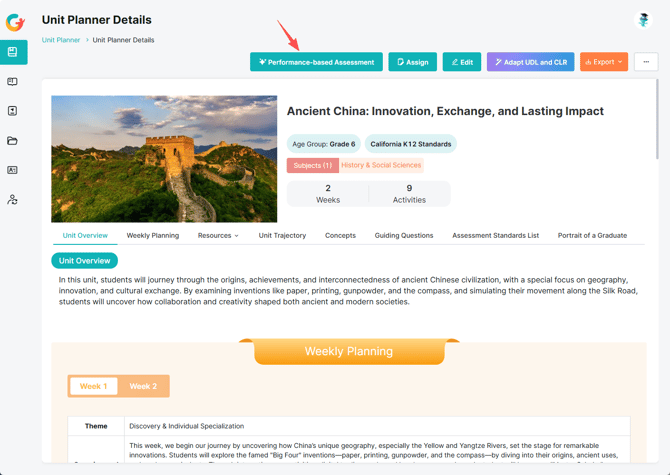
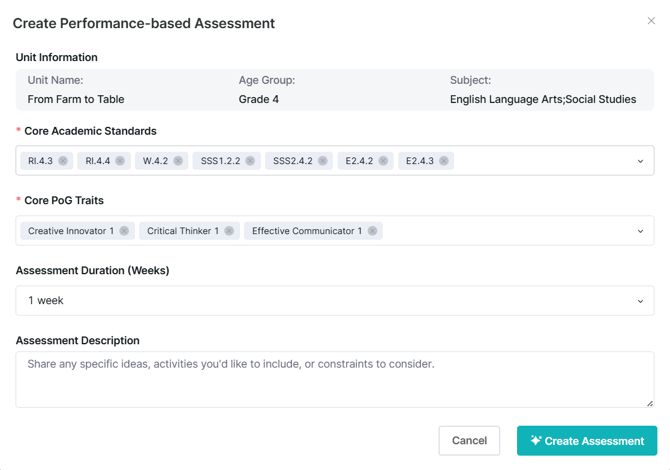
The system will auto-analyze your unit plan to surface the relevant Core Academic Standards and Core PoG Traits.
3. Review the auto-selected standards, set your Assessment Duration (e.g., 1 week), provide a project description or constraints, and click Create Assessment.
Step 2: Map the Learning Stages
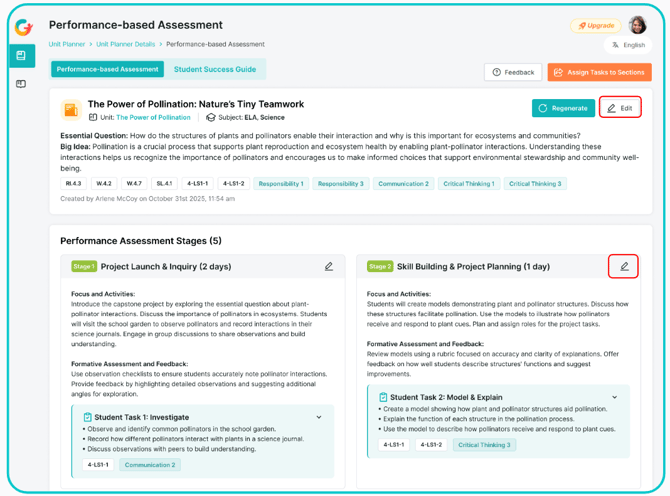
The AI will generate a detailed, 5-stage roadmap for the week (e.g., Project Launch & Inquiry, Research & Development, Feedback & Refinement).
Each stage clearly notes which specific performance task it advances and includes Focus Activities and Formative Assessments.
You can customize the workflow by clicking the Edit button (pencil icon) on any stage card.
Step 3: Customize the Student Success Guide
1. Navigate to the Student Success Guide tab to review the 4–6 auto-generated performance tasks.
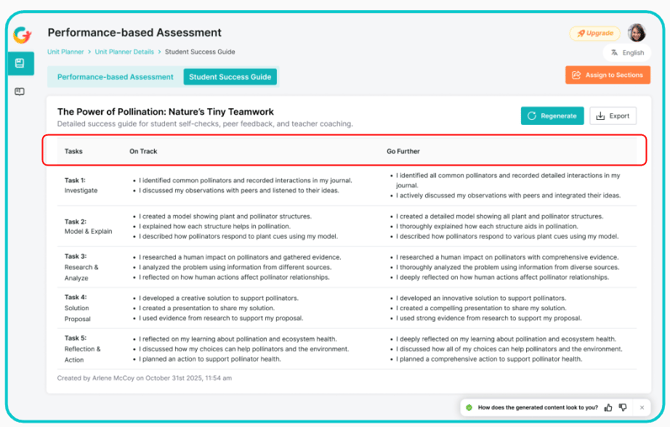
The guide provides clear, student-facing expectations divided into two tiers: On Track (meeting baseline requirements) and Go Further (demonstrating advanced depth).
You can click any cell to manually edit the text or use the Regenerate button to refresh the criteria.
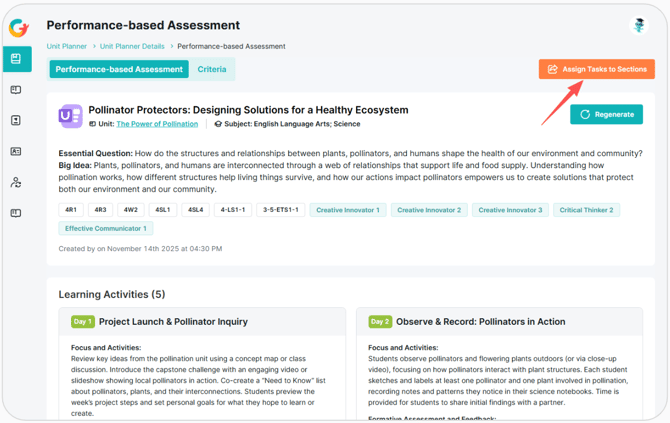
Step 4: Assign to Sections
1. Click Assign Tasks to Sections in the top-right corner.
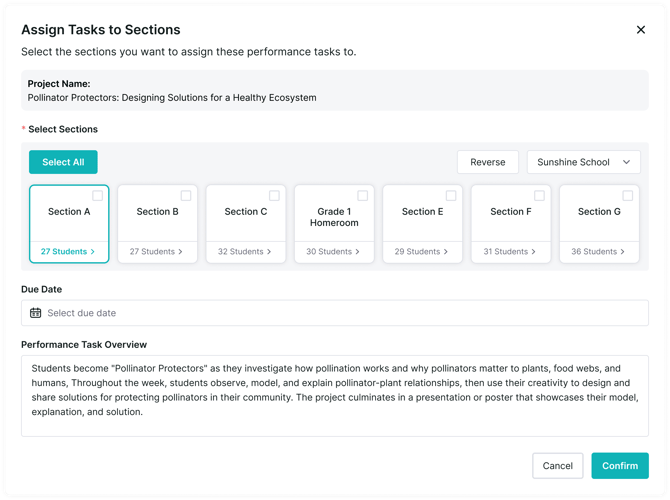
2. Select the specific classes or students who should receive the project and set an optional due date.
3. Review the Performance Task Overview at the bottom—an AI-generated summary of the project's goals and deliverables—and click Confirm to push it to the students' portfolios.
Part 2: Creating PoG Mini Masteries
Mini Masteries turn your daily lesson "Teaching Tips" into quick, competency-based activities that capture real-time evidence of growth.
A. Integrate PoG Mini Masteries at the Unit Level
Step 1: Select PoG Activities
1. Navigate to your Unit Planner's Weekly Planning view and click on a lesson card, OR open an individual Lesson Plan.
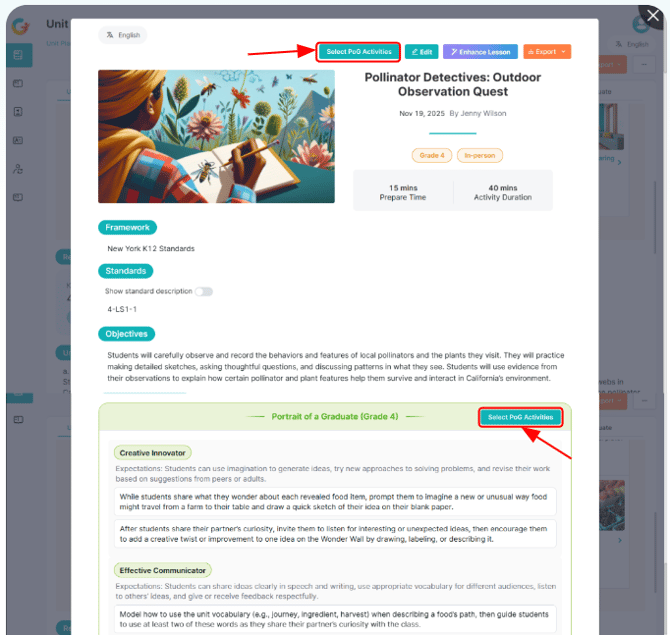
2. Click the Select PoG Activities button (located at the top of the page or next to the PoG Teaching Tips).
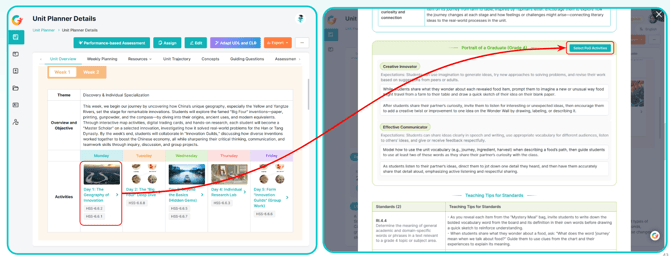
The system will present specific Teaching Tips that can be converted into brief assessments with a single click. Select the ones you want to use.
Step 2: Assign the Mini Mastery
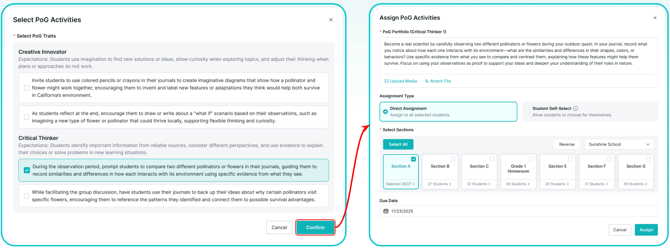
1. After confirming your selections, an assignment window will open.
2. Choose your Assignment Type:
◦ Direct Assignment: Push the activity directly to all selected students.
◦ Student Self-Select: Empower student agency by adding the activity to a pre-set pool, allowing students to choose which mastery resonates with them for independent reflection.
3. Select the target sections, set a due date, and click Assign.
B. Create PoG Mini Masteries from Lesson Plans
Mini Masteries can also be generated directly when working with individual lesson plans.
From the Lesson Plan:
- Create or Adapt: Access the Lesson Plan module to create a new lesson or adapt an existing one.
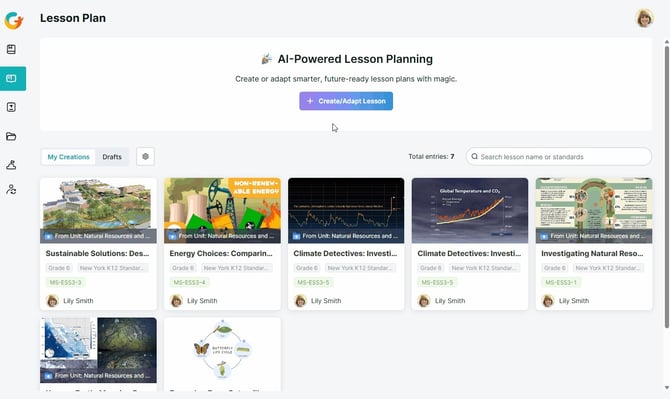
- Generate Activities: Within the lesson detail view, click the Select PoG Activities button—located either at the top of the page or next to the Teaching Tips for PoG section—to instantly generate activities relevant to the lesson's content.
Step 2: Assign the Mini Mastery
1. After confirming your selections, an assignment window will open.
2. Choose your Assignment Type:
◦ Direct Assignment: Push the activity directly to all selected students.
◦ Student Self-Select: Empower student agency by adding the activity to a pre-set pool, allowing students to choose which mastery resonates with them for independent reflection.
3. Select the target sections, set a due date, and click Assign.
Creating PoG assessments—whether through comprehensive unit-level projects or brief daily Mini Masteries—transforms static educational frameworks into a "living curriculum" where student skill growth becomes intentional, visible, and measurable.
The creation process is incredibly helpful for educators because the AI does the heavy lifting: it auto-analyzes your unit plans to surface relevant standards and automatically generates tiered student success guides (from "On Track" to "Go Further"), saving you hours of preparation and rubric-building time.
Ultimately, by taking just a few clicks to create and assign these activities, you seamlessly bridge daily instruction with meaningful evaluation, drastically improving your teaching efficiency while building a holistic, data-driven picture of every student's development
Need Help?
If you run into issues or have questions, the Learning Genie Support Team is here for you!
Email: help@learning-genie.com
Phone: 760-576-4822