-2.png?width=100&height=100&name=Learning%20Genie%20Logo%20(400%20x%20400)-2.png)
This guide provides step-by-step instructions on how to use the Adapt Existing Unit feature to enhance your current curriculum with AI-powered tools, Universal Design for Learning (UDL), and Portrait of a Graduate (PoG) alignment.
Overview
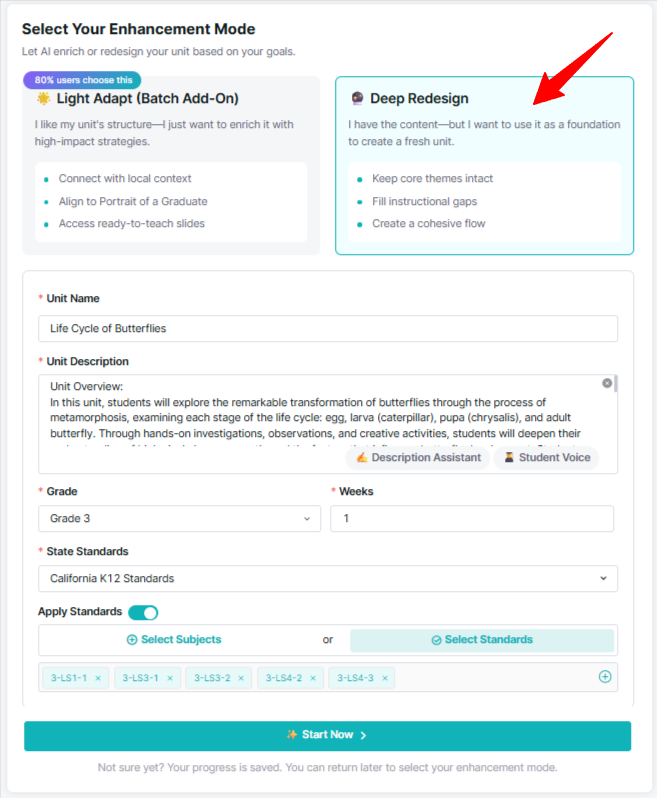
The Adapt Existing Unit tool allows educators to import their current unit plans and use agentic AI to enrich them. You can choose between a Light Adapt, which preserves your existing content while adding AI enhancements, or a Deep Redesign, which rebuilds the unit's structure and standards.
Step 1: Import Your Current Unit
-
Log in to your Curriculum Genie account.
-
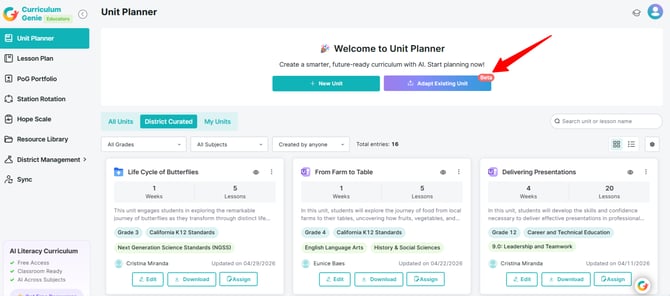
Navigate to the Unit Planner module from the left sidebar.
-
Click the Adapt Existing Unit button.
-
You can import your content in two ways:
-
Paste a Link: Provide a URL to a Google Docs.
-
Upload a File: Drag and drop or select a file (supported formats include .pdf, .docx, .doc, .pptx, and .ppt).
-
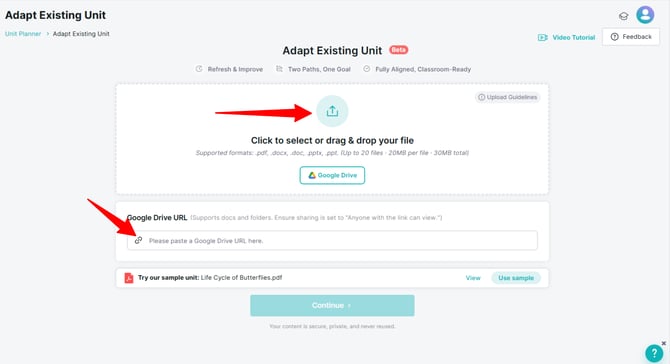
Upload Guidelines
File Limit: Up to 20 documents per upload.
Total File Size: 30MB.
Single File Limit: 20MB.
Supported Formats: .pdf, .docx, .doc, .pptx, .ppt.
Important Note: Please upload documents for one unit at a time. All files in this upload will be automatically merged to create a single curriculum unit.
Step 2: Preview Extracted Data
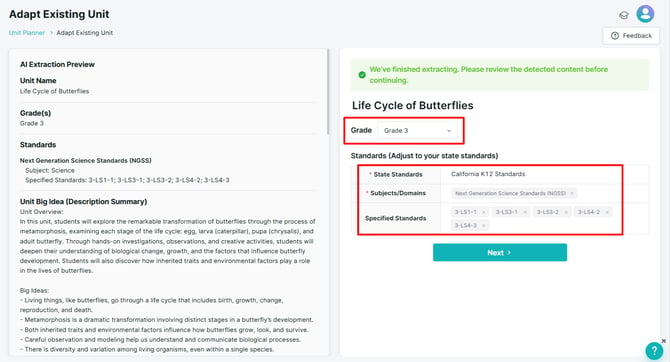
When you upload your existing unit, the AI automatically reads and extracts all key information. This step serves as a quality gate to ensure the AI is working from the right foundation.
Catch Extraction Errors: Review the data to identify any mistakes the AI may have made during extraction, such as:
-
Wrong grade level.
-
Missing or incorrect standards.
Make Adjustments: Before the AI begins the heavy lifting of adaptation, you have the opportunity to:
-
Switch state standards: The AI can intelligently intelligently adapt standards from your original unit to the specific state you teach in today (e.g., switching from California K12 to New York K12).
-
Manage standards: Manually add or remove specific standards to ensure perfect alignment.
Step 3: Select Your Enhancement Mode
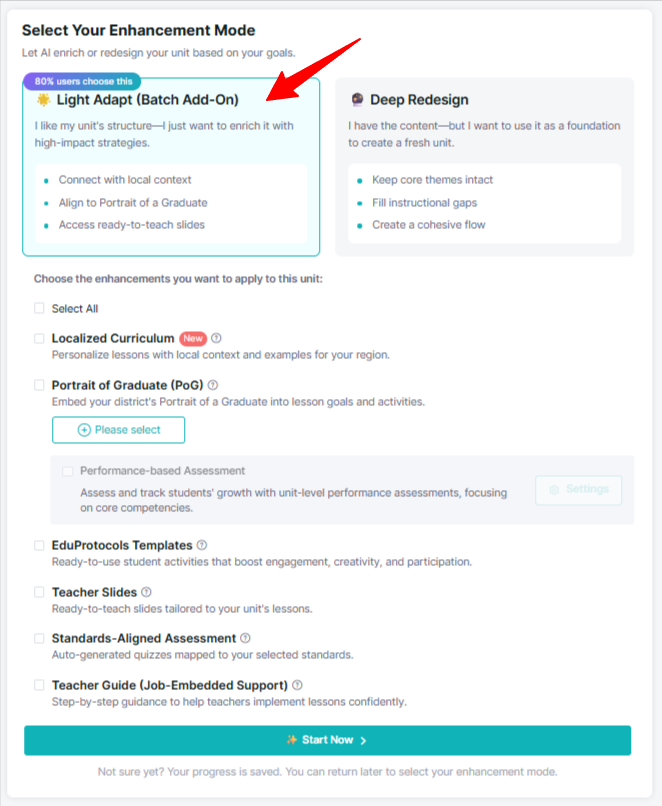
Once the foundation is verified, choose how you want to modernize the unit:
-
Light Adapt (Batch Add-On): Keeps your original content intact but enriches all lessons at once with specific AI-powered instructional enhancements (learn more here).
-
Deep Redesign: Uses AI to fully rethink and rebuild the unit’s structure, content, and standards. If you select Deep Redesign, the system will follow the same guided workflow used when generating a new unit from scratch.
Step 4: Finalize and Save
-
Review the AI-generated modifications in the Lesson Plan Details view.
-
You can manually edit any section, such as objectives, materials, or enhancement ideas, to better fit your goals.
-
Click Save to finalize your adapted unit