-2.png?width=100&height=100&name=Learning%20Genie%20Logo%20(400%20x%20400)-2.png)
Summary: This article provides detailed instructions on how to access and print the QR code for sign-in and sign-out for your class using the Learning Genie platform.
Accessing the QR Code for Your Class
To access the QR code for sign-in and sign-out, follow these steps:
- Log in to your Learning Genie account.
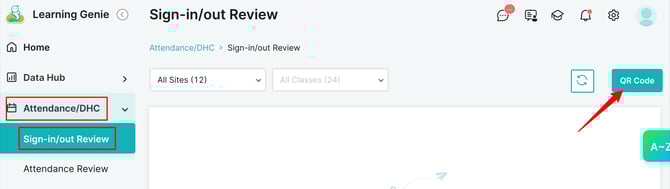
- Navigate to your Attendance/DHC > Sign-In/Out Review.
- Click on the QR Code button.
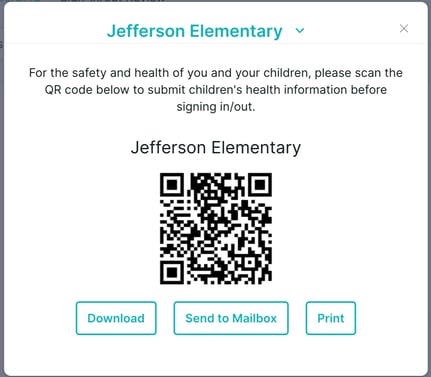
- From here, you may download, print, or send the QR Code to your mailbox.
Using the QR Code
Families can scan the QR codes using the Learning Genie Parent App for sign-in and sign-out purposes.
👉 Share this article with families for guidance: How do I sign my child in and out? (Sign in and out)