-2.png?width=100&height=100&name=Learning%20Genie%20Logo%20(400%20x%20400)-2.png)
The Unit Planner module allows you to build a future-ready curriculum in minutes. By selecting your district’s "Portrait of a Graduate" (PoG) framework during the initial setup, the AI automatically integrates these competencies into your daily lessons, ensuring that skill growth is intentional and measurable alongside academic standards
Access the Unit Planner

- + New Unit: Create a brand new unit from scratch using AI.
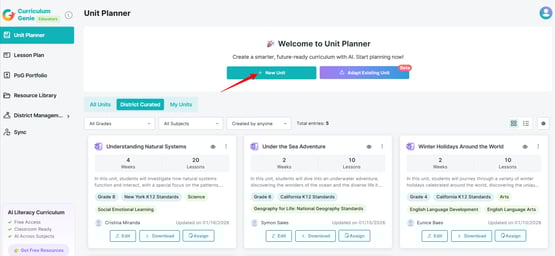
- Adapt Existing Unit: Import and enhance your existing units.
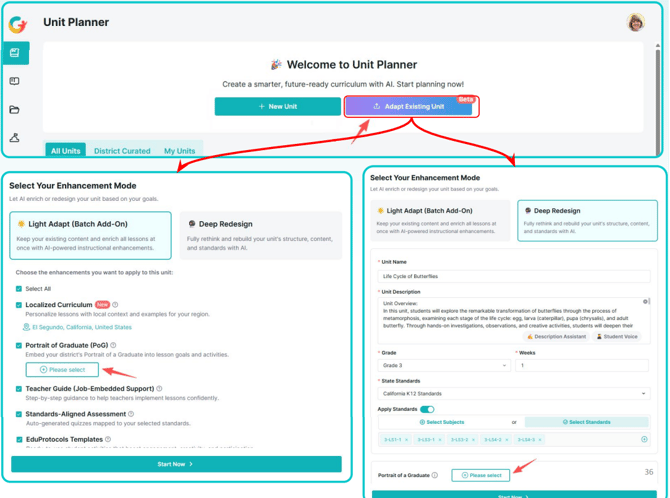
Step 1: Unit Foundations & PoG Setup
This step establishes the core structure of your unit.
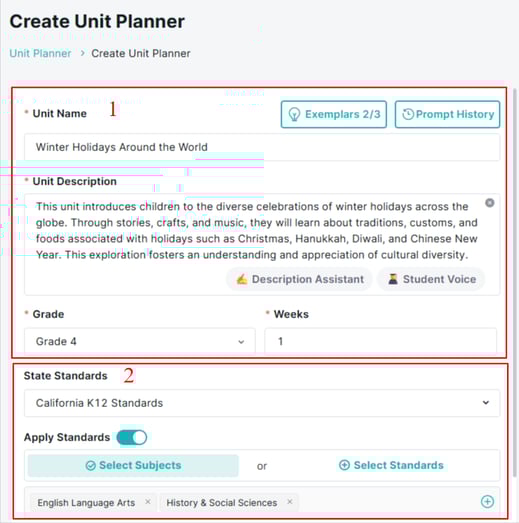
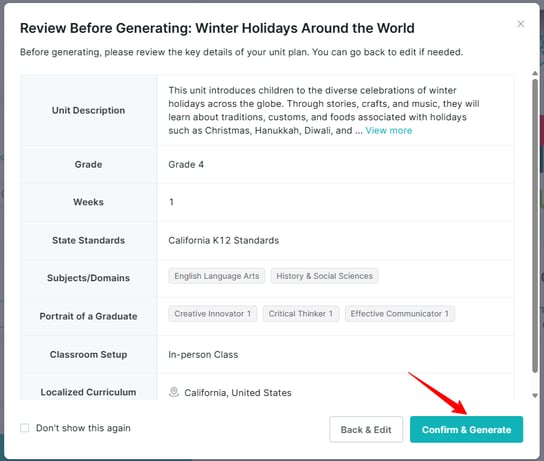
1. Enter Unit Details: Input the Unit Name, Description, Grade Level, and duration (Weeks).
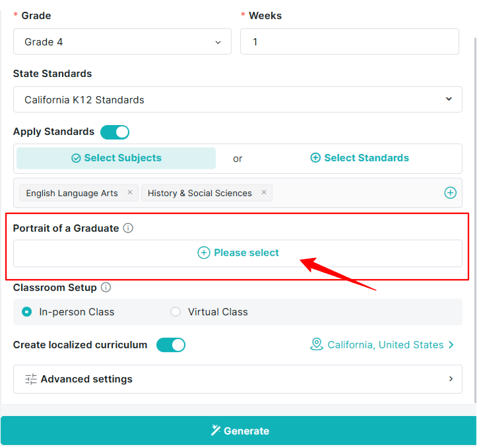
- Locate the Portrait of a Graduate option in the setup menu.
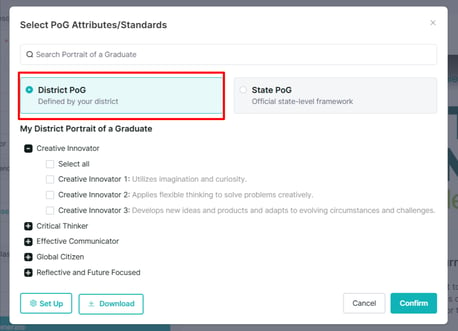
- Click Please select to open the Select PoG Attributes/Standards panel. You will have two options to choose from:
-
- District PoG – Uses your district's custom-defined Portrait of a Graduate framework. This option is available only if your district administrator has already set this up.
-
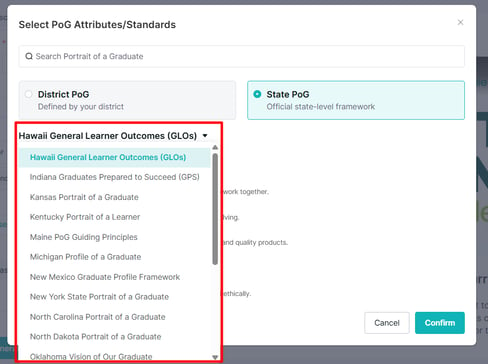
- State PoG – Uses an official state-level framework. Select your preferred state framework from the dropdown, which includes PoG frameworks from different states (e.g., Hawaii General Learner Outcomes, Indiana Graduates Prepared to Succeed, Kansas Portrait of a Graduate, and more).
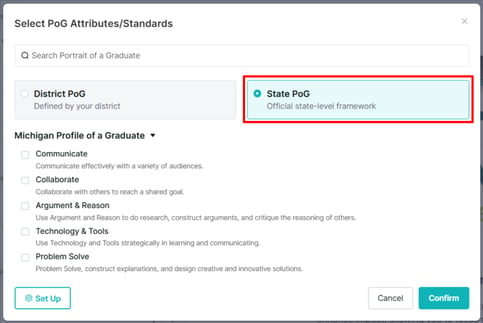
Note: Selecting these traits now allows the system to automatically incorporate them into lesson goals and activities, laying the foundation for future assessments. You may select up to three traits only.
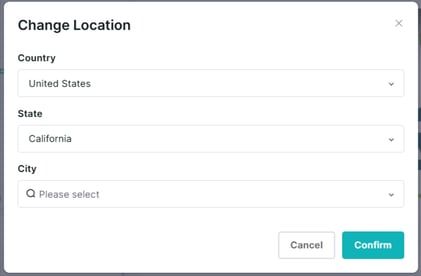
- "Localized Curriculum" to add local context
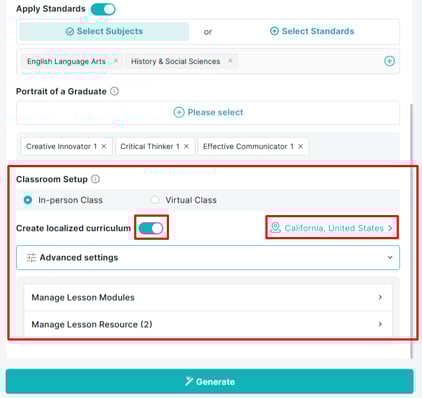
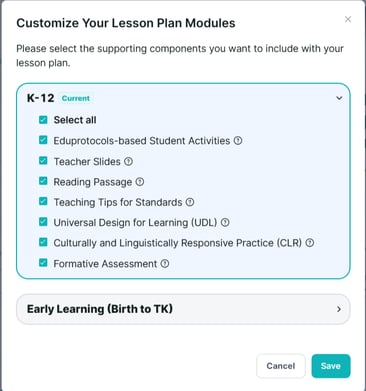
- "Lesson Modules" to select supporting components you want to include with your lesson plans.
Step 2: Weekly Theme & Overview
- Review the Unit Overview and Unit Trajectory generated by the system.
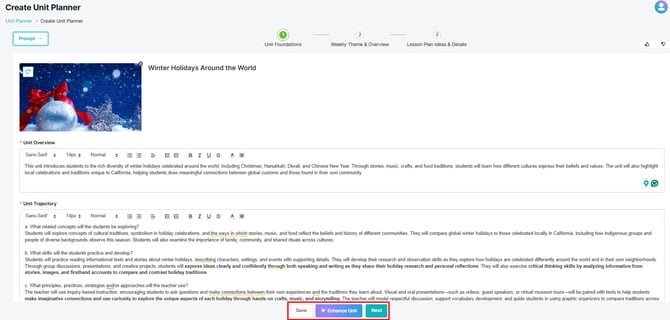
You can click directly into any text box to manually edit the information. Once you’re satisfied with the results—or if you’d like to save your edits—click “Next” to continue.
If you’d like the system to regenerate the unit details instead, click “Enhance Unit” and describe what you want to improve or change (for example, refining learning objectives, adjusting activities, or aligning the unit more closely to a specific theme or skill). The system will then update the unit based on your input.
- Once you click Next, the system creates a Weekly Theme, outlining how students will explore concepts and develop specific skills.
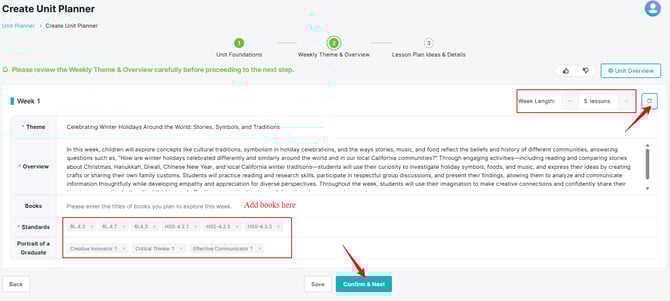
- Verify that the trajectory aligns with both your academic standards and the PoG attributes you selected.
Step 3: Lesson Plan Ideas & Details
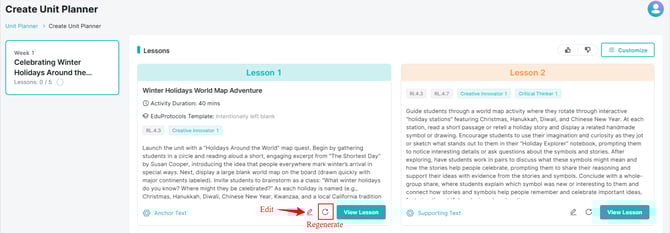
- Lesson Generation: The AI generates interactive, age-appropriate lesson plans that include a variety of centers and station-based activities.
Review each lesson idea before generating it. If the results don’t meet your needs, you may regenerate the entire lesson or manually edit specific details, such as the title, duration, standards, EduProtocols template (and supporting components), Profile of a Graduate (PoG) trait focus, and activity description.
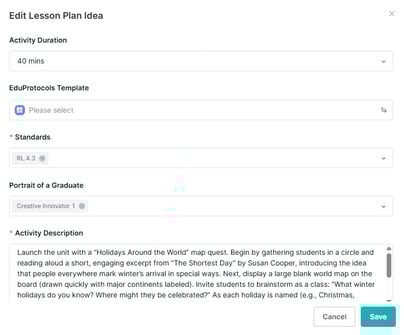
Once all lesson ideas are reviewed and finalized, click View My Lessons to generate each lesson.
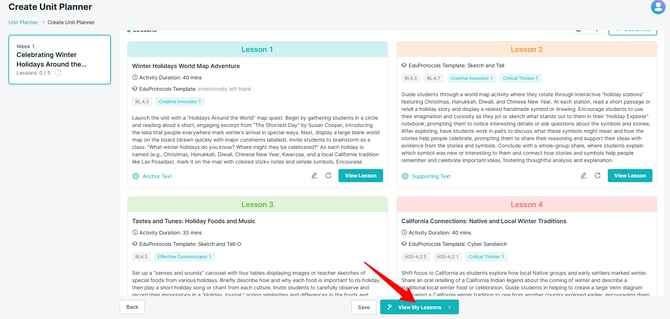
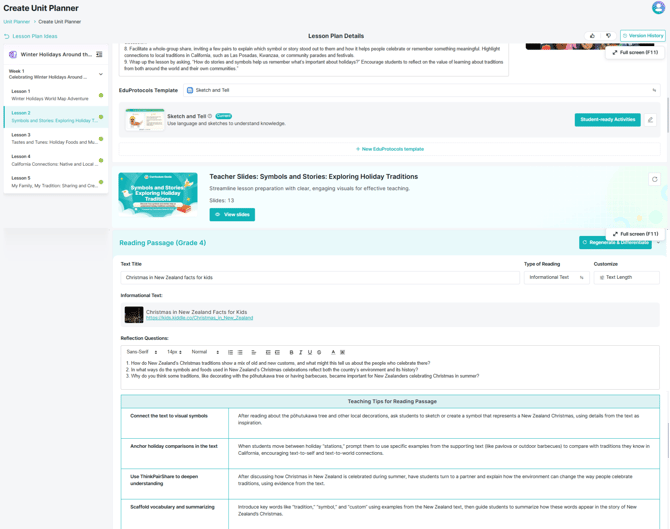
- PoG Integration:
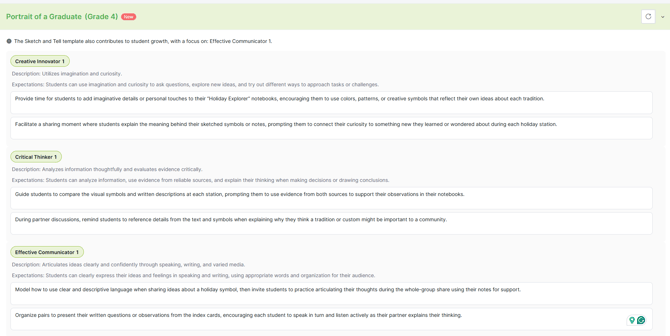
- Within the lesson details, you will see specific Teaching Tips related to the PoG attributes you selected.
- These tips can later be converted into Mini Masteries (short competency-based assessments) directly from this view.
- Use the Enhance Lesson feature to modify specific standards or redesign elements if necessary.
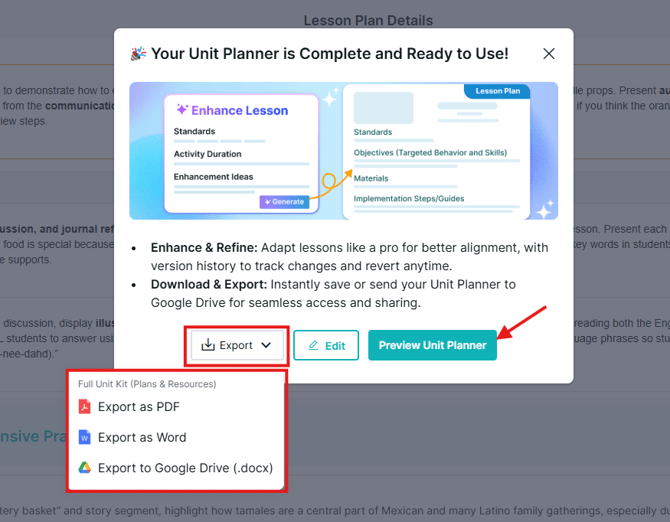
- Click Save or Export to finalize your unit. You can now proceed to generate a Performance-based Assessment to evaluate the PoG skills embedded in this unit
Need Help?
If you run into issues or have questions, the Learning Genie Support Team is here for you!
Email: help@learning-genie.com
Phone: 760-576-4822