-2.png?width=100&height=100&name=Learning%20Genie%20Logo%20(400%20x%20400)-2.png)
A quick-start guide to accepting your school invitation and accessing your Curriculum Genie student portal.
Student Portal URL:
https://student.curriculumgenie.learning-genie.com/app/index.html
Welcome to Curriculum Genie! Before you can start completing assignments and earning achievement badges, you need to activate your student account.
Once your teacher or school administrator adds you to the system, you will be guided through a simple registration process via email. Here is how to get started.
Step-by-Step Guide:
- Check Your Email: Once your teacher or school administrator adds you to the system, you will automatically receive an email invitation to join Curriculum Genie.
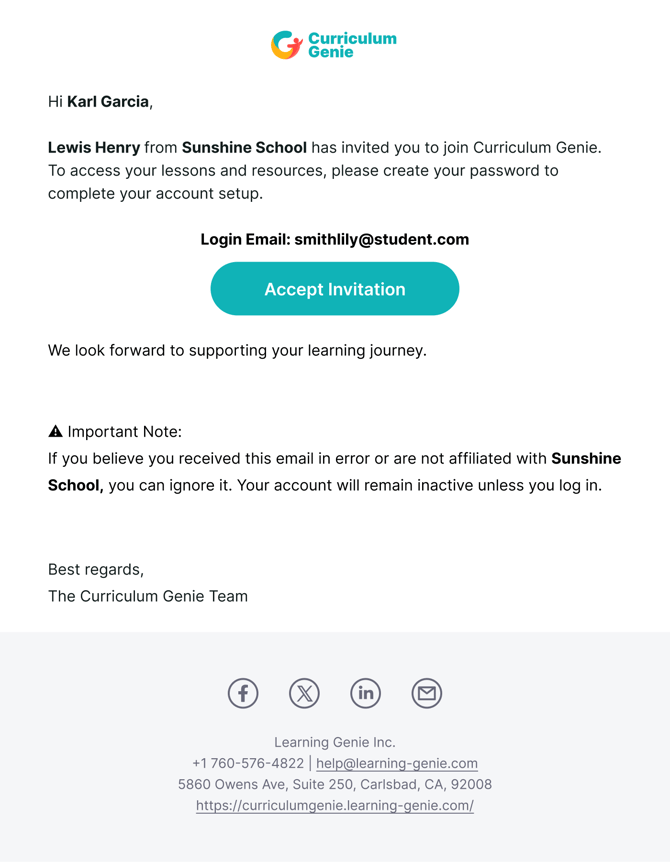
- Accept the Invitation: Open the email and locate the teal "Accept Invitation" button. Click this button to be securely redirected to the Curriculum Genie setup page.
- Set Up Your Password: To access your lessons and resources safely, you will be prompted to create a password. Follow the on-screen instructions to set a secure password and complete your account setup.
- Log In:
After setting your password, you are ready to log in!
-
Explore Your Dashboard Once logged in, you will land on your PoG Portfolio dashboard. From here, you can start your learning journey! You will be able to:
- View assignments sent by your teachers, including major Performance-based Tasks and daily PoG Mini Masteries.
- Browse and select from Self-select Mini Masteries.
- Submit reflections using text, images, audio, or video to earn points and achievement badges.
- View your teacher's ratings and read their personalized feedback to help you grow.
Need Help?
If you run into issues or have questions, the Learning Genie Support Team is here for you!
Email: help@learning-genie.com
Phone: 760-576-4822